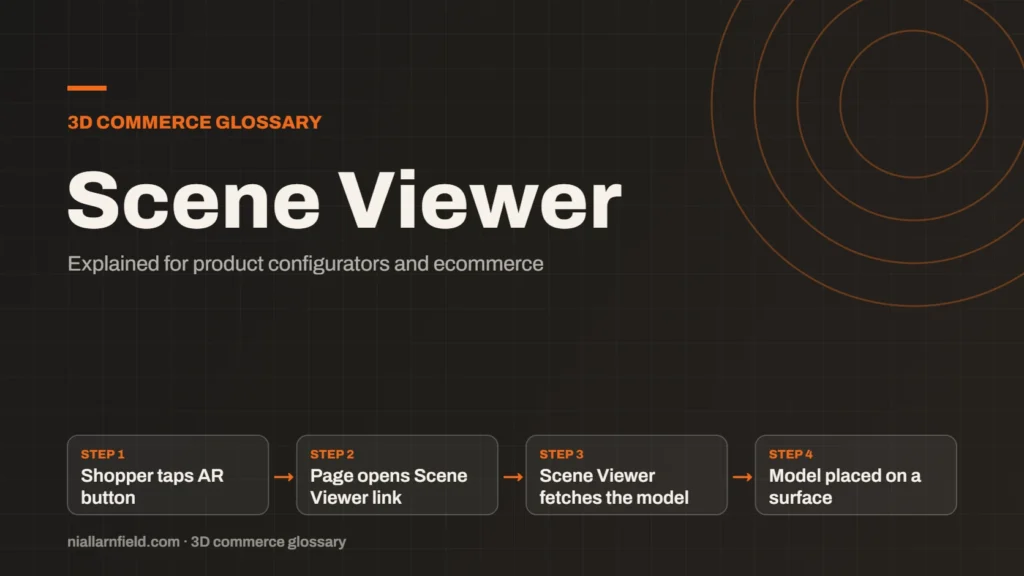
Scene Viewer is Google’s viewer for 3D and augmented reality (AR) models on Android. A web page opens it with a link, and it shows glTF or GLB models on ARCore-compatible phones.
Discuss your product rangeTry the demos
What Scene Viewer does
Scene Viewer lets a shopper view a 3D model in their own space. On a compatible phone, the model appears over the camera view. The shopper can place it on a flat surface, then walk around it to check the size and the finish.
Scene Viewer works with Google’s ARCore platform for Android. It also powers AR experiences inside Google Search. Many Android browsers can open it. The official guide is on Google’s Scene Viewer page, which covers the launch options in detail.
Shoppers on iPhone need a different route, which is covered in the AR Quick Look guide. A page that offers both routes serves far more customers than one that offers only Android.
- Shopper taps AR button
- Page opens Scene Viewer link
- Scene Viewer fetches the model
- Model placed on a surface
What a phone needs
Scene Viewer runs on Android only. The device must support ARCore and run Android 7.0 or later. Google Play Services for AR and the Google app must also be installed and up to date. Google usually keeps these components current in the background.
If a requirement is missing, the page can show a fallback. Set the fallback to a web page or a plain message. Shoppers can then still see something useful, even when their phone cannot open the AR view.
Older Android phones may not support ARCore. In that case the fallback is the only route. Treat the 3D view as the main experience, and treat AR as a bonus for compatible phones.
How a web page launches it
A web page opens Scene Viewer with an intent link. The link points to the model file and names a fallback page for devices that cannot open it. The model should be served over HTTPS, so the browser can load it safely.
Developers often use the model-viewer web component instead of writing the link by hand. Its ar attribute adds an AR button. The ar-modes setting chooses between WebXR and Scene Viewer. This suits pages that must support more than one device with one button.
Before you publish, test the file in the free GLB viewer on this site. It shows whether the model opens and looks right. Then test the AR launch on a real phone.
Limits to plan for
- Keep the model under about 10 MB, which Google gives as a recommended size.
- Keep the triangle count at or below 100,000, also a recommendation from Google.
- Use textures no larger than 2048 by 2048 pixels.
- Expect only the first animation to play.
- Test on a slow connection, because a large download can time out before the AR view opens.
These are guidelines, not hard rules. Test each model on a real phone before you rely on it.
How to test before launch
Start with a model that already passes the size limits. Open the page on at least two Android phones with different chips. Check that the AR button appears, that the model loads and that the fallback works when Google Play Services for AR is missing.
Also check the plain 3D view. Some shoppers will never open AR, and the basic view must still work well. Scale the model against a known object, such as a chair or a mug, to confirm that its size is right before the shopper sees it.
Some shoppers will use an older phone, or one with an out-of-date Google app. Google keeps these components updated, but older devices can lag behind. A clear message in the fallback helps those shoppers understand what to do next.
Why it matters for configurators
AR lets a shopper check the size of a product in their own room. For a product configurator, the model must already be built for mobile limits. A high-detail desktop model may fail to load or stutter on a phone, and the shopper will simply leave.
When I prepare a model for AR, I check size, scale and triangle count first. Then I test on a real Android phone. A desktop preview does not show the problems that a phone will show, so I never skip that step.
Scene Viewer rewards careful preparation. The best results come from a model that already loads quickly on desktop and passes the limits above. I link this work to the wider preparation guide.
Related terms
- WebXR: WebXR is a web standard for augmented reality (AR) and virtual reality (VR) in the browser, published by the W3C.
- HDRI lighting: HDRI lighting uses a high dynamic range image of an environment to light a 3D scene.
- WebGPU: WebGPU is the newer web standard for using a device's graphics processor from a browser.
- Three.js: Three.js is a JavaScript library that makes 3D graphics on the web easier to build.
- Babylon.js: Babylon.js is a JavaScript engine for building 3D experiences in the browser.
- PlayCanvas: PlayCanvas is an open-source 3D engine written in JavaScript, with its own visual editor.
- React Three Fiber: React Three Fiber is a React renderer for Three.js.
- model-viewer: model-viewer is Google's open-source web component for showing 3D models on a web page.
- Normal map: A normal map is an image that fakes fine surface detail, such as grooves and small bumps, by changing how light hits a surface.
- Roughness map: A roughness map is a texture that sets how blurry or sharp a surface's reflections look.
Browse all the definitions in the 3D commerce glossary.
Common questions
Does Scene Viewer work on iPhone?
No. Scene Viewer runs on Android devices that support ARCore. iPhone users need a different AR format. Apple uses USDZ files with AR Quick Look, which is covered in the AR Quick Look guide. A good page offers both routes.
What file types does Scene Viewer open?
It opens glTF 2.0 and GLB files. Use GLB when you want one file to upload and host. Google lists a recommended size of about 10 MB. Keep models small so they load quickly on mobile networks, where shoppers often have weaker signal.
Is Scene Viewer the same as WebXR?
No. Scene Viewer is Google’s Android viewer for AR. WebXR is a web standard for AR and VR inside the browser. Model-viewer can use either one, so you do not have to choose in advance. The choice depends on the device a shopper uses.