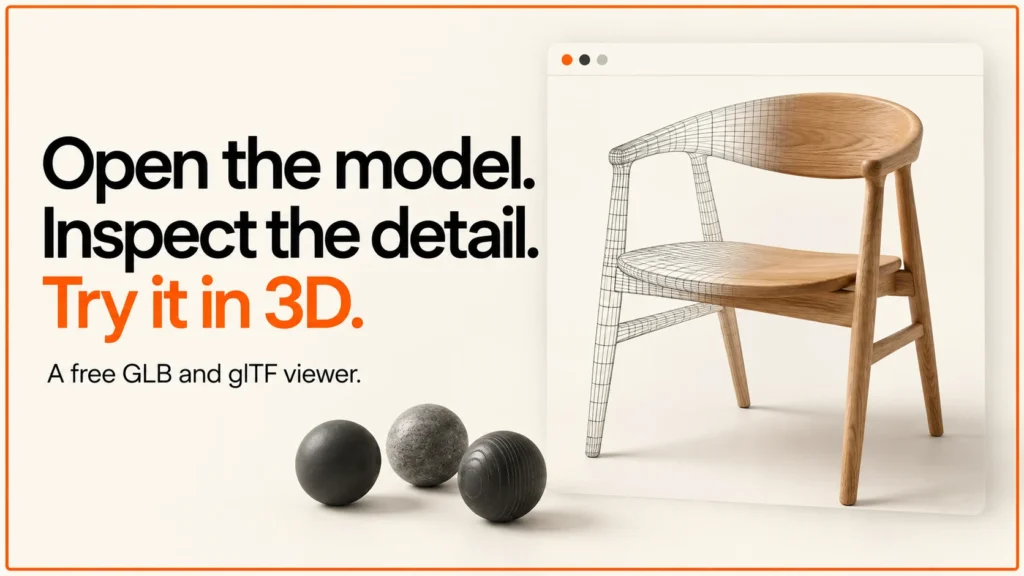
Open a GLB file in your browser, rotate the model and inspect its mesh and material counts. This free viewer is built with Three.js and includes an original demo model so you can try it before choosing a file.
Discuss your product rangeTry the demos
Free GLB and glTF viewer
Files are read locally in this browser. The viewer does not send model files to a server. The Three.js library loads from a public CDN.
Drag to rotate. Scroll or pinch to zoom. Keyboard: focus the preview, use arrow keys to rotate and + or – to zoom.
Loading the viewer…
What this viewer supports
Use a glTF 2.0 GLB with embedded geometry and textures, or a JSON .gltf whose resources use data URIs. External resource URLs are blocked so selecting a local model cannot quietly load its linked assets from another website. The file-size limit is 25 MiB. This is a static inspection viewer: it does not play animations or provide AR.
Draco, Meshopt and KTX2/Basis compressed assets are not decoded here. Export an uncompressed copy to inspect the basic geometry and material setup. A file that needs an unsupported required extension should be checked in a viewer configured for that extension. A successful preview is not formal glTF validation.
An original model you can inspect
The included chair is built from six box meshes: one seat, one back and four legs. It deliberately uses simple geometry so wireframe mode makes the construction easy to read. Each box contains twelve triangles, giving 72 triangles across the demo. Separate material instances make the count useful as an explanation of objects, rather than a claim that the chair is optimised for production.
Try wireframe, turn it off, rotate to the back and reset the view. You should see the same scene return to its starting framing. Then compare the demo with a model you exported yourself. A detailed mesh can be appropriate, but invisible interior geometry and repeated material instances deserve investigation.
A five-minute product-model inspection
- Check the silhouette. Rotate around the model. Confirm that the back, underside and seams are complete where shoppers will see them.
- Check material assignments. Inspect whether wood, metal, upholstery and glass are assigned consistently. A visually plausible preview cannot verify the accuracy of a supplier’s finish.
- Check geometry. Switch to wireframe and look for unusually dense small parts or missing surfaces. Triangle count is only one part of performance.
- Check orientation. Decide how the product should be presented in your actual product page or configurator. This viewer centres the camera; it does not alter the source file.
- Check on the target device. Test the finished storefront on a representative phone. This preview is not a measured Core Web Vitals benchmark.
Why the model can look different elsewhere
This viewer uses a neutral background, a hemisphere light and a directional light. Your Blender scene, product page or AR viewer may use different lighting, exposure, tone mapping or material extensions. Compare the same asset under controlled conditions before concluding that the model itself changed.
The preview counts mesh objects, triangle primitives and material instances in the loaded scene. These are inspection figures, not download budgets, draw-call measurements or a quality score. Textures can consume substantial memory even when the geometry is small.
See how this viewer fits with other tools in Three.js ecommerce examples.
Preparing an AR version as well? Read USDZ and AR Quick Look.
Common problems and what they usually mean
If a model looks wrong in the viewer, these are the first things to check.
- The model is tiny or huge. glTF uses metres as its unit. A model exported in centimetres or millimetres will load at the wrong size.
- The model is lying on its side. glTF expects Y to point up. Some tools use Z-up, so check the export settings.
- Parts look inside out or see-through. The face normals may point the wrong way, or the material may be set to show only one side.
- Metal looks flat or dark. Metal reflects its surroundings, so it needs an environment map to look right. Read what PBR is for why.
- The file is very large. Big textures are the usual cause. See how to optimise glTF for the web.
Related reading: 3D product visualisation.
From a preview to a working product experience
A model viewer shows the asset. A configurator also needs valid choices, pricing, persistent selections and a reliable quote or cart hand-off. See 3D models for product configurators, configurator development and the working demo studio. If you are unsure about the file format, start with the GLB guide. To put a model on your own WordPress site, follow how to embed a 3D viewer in WordPress.
Technical references: Khronos glTF 2.0 specification and Three.js GLTFLoader documentation. Viewer version 1, published 13 October 2026.
To see a GLB model inside a working configurator, try the Three.js desk lamp demo.