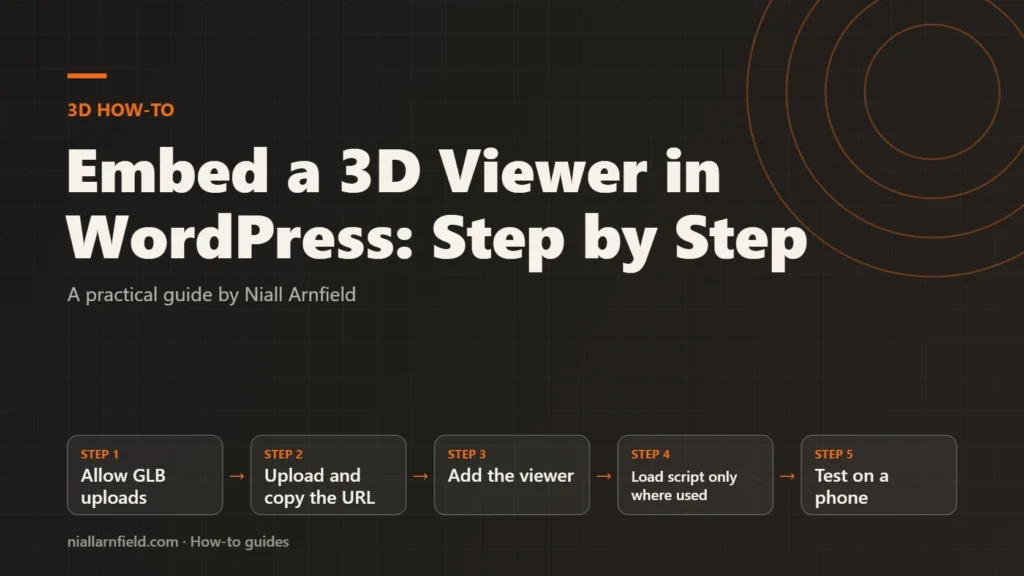
WordPress refuses GLB files by default, and a 3D script adds weight to every page. This guide shows how to allow GLB uploads, then add a viewer that loads its script only where you place it.
Discuss your WordPress siteSee selected work
Why WordPress needs setup for 3D files
WordPress checks each upload against a list of allowed file types. GLB is not on that default list, so the Media Library rejects the file with a security message. You add the type yourself with a filter. The upload_mimes filter reference explains how this list is filtered.
The viewer is a separate concern. A 3D script is much heavier than a photo, so it should load only on pages that show a model. Otherwise every visitor downloads it, including the people who never see a product. Loading the script in the right place keeps the rest of the site fast.
- Allow GLB uploads
- Upload and copy the URL
- Add the viewer
- Load script only where used
- Test on a phone
Decide where the viewer will live
Three placements cover most needs. Pick one before you write any code, because each one changes where the files live.
- Custom HTML block. Best for one page. You paste the markup once, and it stays with that page.
- Shortcode. Best for the same viewer on many posts or product pages, placed with one line.
- Iframe embed. Best when the viewer must stay apart from your theme. See configurator embed for how that works.
This guide covers the block and the shortcode. Both use model-viewer, Google’s open source web component for showing 3D models. The model-viewer guide covers its attributes in more depth. Put any PHP in a site-specific plugin or child theme, so theme updates do not remove it.
Step by step
-
Allow the GLB file type
Add this filter to a site-specific plugin or to your child theme’s functions.php file. It adds the GLB type to the list of allowed uploads, so the Media Library accepts the file. Do not add it to a parent theme, because theme updates overwrite that file and the upload rule disappears.
add_filter( 'upload_mimes', function ( $mimes ) {
    $mimes['glb'] = 'model/gltf-binary';
    return $mimes;
} );
If the upload still fails, add this second filter. It sets the file type when WordPress checks the file contents, which some setups do before accepting an upload. Once the filter is in place, the Media Library accepts GLB files as a normal upload type.
add_filter( 'wp_check_filetype_and_ext', function ( $data, $file, $name ) { if ( substr( $name, -4 ) === '.glb' ) { $data['ext'] = 'glb'; $data['type'] = 'model/gltf-binary'; } return $data; }, 10, 3 ); -
Upload the model and copy its URL
Upload the GLB to the Media Library. Check its size against your budget first, because a large file slows the page even when the script loads correctly. Copy the file URL for the next steps. For background on the format itself, see what a GLB file is.
-
Add the viewer with a Custom HTML block
In the block editor, add a Custom HTML block where the viewer should appear. Paste the script tag first, then the element. Keeping both in one block means the script loads only on this page, and nowhere else on the site. The camera-controls attribute lets shoppers rotate and zoom the model.
<script type="module" src="https://cdn.jsdelivr.net/npm/@google/model-viewer@4.2.0/dist/model-viewer.min.js"></script>
<model-viewer src="/wp-content/uploads/lamp.glb" alt="Desk lamp in ink, arm extended" poster="/wp-content/uploads/lamp.jpg" camera-controls></model-viewer>
The version in the script URL is pinned, so the viewer does not change without warning when a new release appears. Check the model-viewer releases page for the current version before you copy it. Give the element a height in your theme CSS, or it may collapse to nothing on the page.
-
Write a shortcode for repeat use
A shortcode lets editors place the viewer with one line, without touching HTML. This snippet adds the script once per page, and only on pages that use the shortcode. It escapes each attribute, so editors cannot inject markup through the fields.
add_shortcode( 'glb', function ( $atts ) {
    static $script_done = false;
    $a = shortcode_atts( array( 'src' => '', 'alt' => '', 'poster' => '' ), $atts );
    if ( '' === $a['src'] ) {
        return '';
    }
    $script = '';
    if ( ! $script_done ) {
        $script_done = true;
        $script = '<script type="module" src="https://cdn.jsdelivr.net/npm/@google/model-viewer@4.2.0/dist/model-viewer.min.js"></script>';
    }
    return $script . '<model-viewer class="glb-viewer" camera-controls src="' . esc_url( $a['src'] ) . '" alt="' . esc_attr( $a['alt'] ) . '" poster="' . esc_url( $a['poster'] ) . '"></model-viewer>';
} );
Editors then add
[glb src="/wp-content/uploads/lamp.glb" alt="Desk lamp in ink" poster="/wp-content/uploads/lamp.jpg"]in a Shortcode block. Give theglb-viewerclass a height in your theme CSS, so the viewer has room to draw. Adjust the poster and alt values for each model, rather than reusing one generic description. -
Write useful alt text and a poster
Describe what the shopper sees, such as the colour, finish or visible option. Do not use the file name, because screen reader users hear it as noise. The poster image appears while the model loads, so people on slow connections see something straight away. Then test with a screen reader to confirm it reads the alt text in the right order.
-
Confirm the script loads only where used
Open a page without the viewer and view its source. Search for
model-viewer. It should not appear. On a page with the viewer, the script should appear once. Clear your caching plugin after each code change, or you may see old output and assume the fix failed. -
Test the viewer on a phone
Drag the model with one finger, then scroll the page. Confirm that you can still scroll past the viewer, because a viewer that traps touch scrolling frustrates shoppers quickly. Test on both an iPhone and an Android phone if you can, since browsers differ in how they handle touch.

How to check it worked
The viewer appears, the model rotates, and the poster shows while the model loads. The script appears once, and only on the pages that need it. A screen reader reads your alt text correctly. Check all of this on the live page, not only in the editor, because the editor does not show how the theme behaves.
Common mistakes
- Adding the upload filter to a parent theme, which theme updates quietly remove.
- Leaving the viewer without a height, so it shows nothing at all on the page.
- Loading an unversioned script, which can change behaviour without warning.
- Uploading a large GLB without checking its size first, which slows every visit.
If you need a configurator with options, pricing or a cart, a custom build is usually a better fit than a single viewer. See my WordPress development work for how I approach that kind of project.
Related how-to guides
- Compress Textures with KTX2 for 3D Models: Large texture images make 3D models slow and heavy in graphics memory.
- Optimise glTF for the Web: A Step-by-Step Guide: A heavy 3D model slows every product page it appears on.
- Product Option Apps vs a Custom Build on Shopify: Shopify apps can add product options quickly, but a custom build gives you full control over data and cost.
- Shopify Redirects at Scale for Bulk Migrations: Shopify lets you redirect old URLs to new ones, one at a time or by CSV import.
- Add a 3D Viewer with a Shopify Theme App Extension: A 3D viewer should load on product pages only, and only where the merchant places it.
- Shopify to WooCommerce Migration: Step-by-Step Guide: Moving from Shopify to WooCommerce means moving products, customers, orders and every old web address.
- How to Get Past Shopify's Product Variant Limit: Shopify caps how many variants and options one product can have, so a highly configurable item can run out of room.
See all the Shopify, WooCommerce and 3D how-to guides.
Related reading: BigCommerce and WordPress configurators and Three.js ecommerce examples.
Common questions
Can I upload GLB files to the WordPress Media Library?
Yes, once you allow the type. Add the upload_mimes filter in a plugin or child theme. If WordPress still refuses the file, add the content check filter too. Then upload the file and test its URL on a live page before you rely on it.
Does model-viewer work on phones?
Yes. Touch rotation and zoom work on modern phones. Augmented reality depends on the device and browser, so treat it as an extra rather than a requirement. Test the page on at least one iPhone and one Android phone before you launch.
Should I use an iframe instead?
An iframe keeps the viewer’s code apart from your theme and other plugins. That helps when conflicts appear. A block or shortcode is simpler for a few models on your own pages, and it keeps the viewer close to your content.