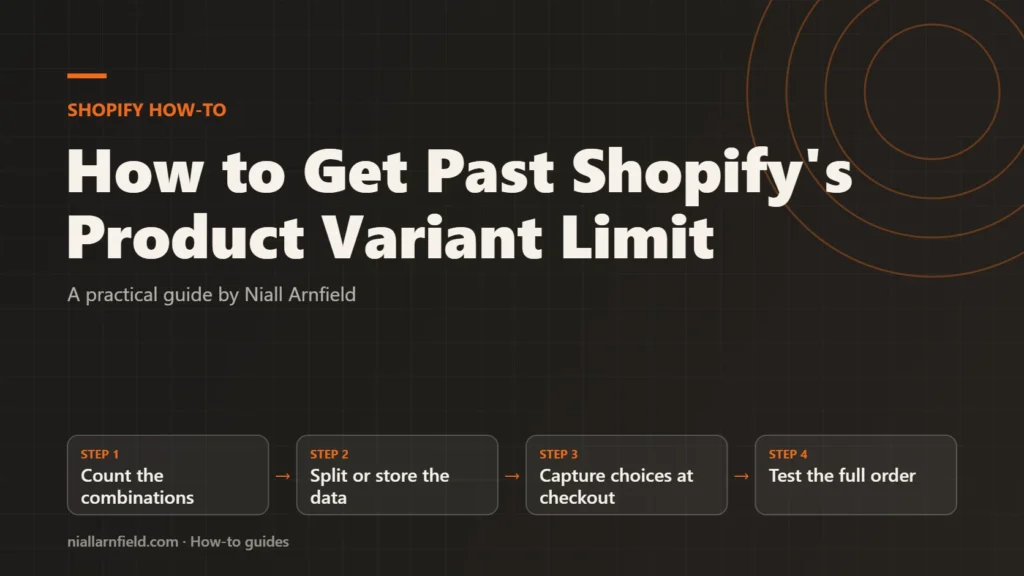
Shopify caps how many variants and options one product can have, so a highly configurable item can run out of room. The fix is to pick the right structure for your catalogue: separate products, line-item properties, metafields, or an option app.
Discuss your Shopify storeSee selected work
Why the limit bites
Each variant is a separate row in Shopify. It has its own price, SKU and stock count. Shopify’s help centre says a product can have up to 2,048 variants and up to three options, such as size, colour and material.
The limit bites when every choice multiplies the others. For example, three colours, four sizes and five trims make 60 variants. Add one more trim and one more size, and the list grows quickly. Each row also needs stock, images and pricing, so the admin work grows with it.
The limit is not the only issue. A product with hundreds of rows is slow to edit, and each row needs its own image, price and stock figure. Bulk editing helps with the admin work, but it does not change the limit itself. Check the count before you build, not after. Shopify can change these figures, so confirm them in the help centre guide to adding variants and the changelog before you commit to a design.
- Count the combinations
- Split or store the data
- Capture choices at checkout
- Test the full order
What to decide before you start
Ask three questions about each choice a customer makes. Your answers point to the right route.
- Does each combination need its own stock count, SKU or price?
- Does the choice need to appear on the order, the packing slip or the invoice?
- Is the choice a fact about the product, such as a fabric or a care note?
A yes to the first question means variants or separate products. A yes to the second means line-item properties, which travel with the cart line. A yes to the third means metafields. The steps below follow that split, and the product variants guide explains the built-in options in more detail.
Also consider who maintains the store. If your marketing team adds new finishes each season, a structure that needs a developer for every change will slow you down. Pick a route that your team can run without you, and save the complex rules for the places that truly need them.
Step by step
-
Count every combination
Multiply the number of values in each option. Compare the total with the variant limit. If the total stays under the limit and every combination needs stock, variants remain the simplest route.
-
Split a large range into products
If one family is too big, divide it by a strong attribute, such as material or product line. Give each group its own product with its own variants. Link the products through a collection, so shoppers can still browse them together. Keep the option names consistent across the group, so filters and comparisons work the same way.
-
Capture choices as line-item properties
Line-item properties are name and value pairs that stay with one cart line. Add an input named
properties[Label]inside the add-to-cart form, where the label is the name the customer and the order will see. This snippet is a starting point for a theme whose product form posts to/cart/add. Keep the label short, because long labels make the cart and emails hard to read.<form action="/cart/add" method="post"> <input type="hidden" name="id" value="{{ product.selected_or_first_available_variant.id }}"> <label for="engraving">Engraving (up to 20 characters)</label> <input type="text" id="engraving" name="properties[Engraving]" maxlength="20"> <button type="submit">Add to cart</button> </form> -
Store product facts as metafields
Metafields hold structured data on the product itself, such as a fabric note or a care guide. Create a definition for each one in the Shopify admin first, so the field has a name and a type. Then read it in your theme, and test it on a product that has a value and one that does not. The example below assumes a single-line text metafield in the custom namespace, with the key finish_note.
{% if product.metafields.custom.finish_note.value != blank %} <p>{{ product.metafields.custom.finish_note.value }}</p> {% endif %} -
Check option apps for simple cases
An option app adds custom fields to the product page and writes the choices to the order. These suit simple selections that do not affect stock. Before you install one, read its documentation on data storage, check what it costs as your catalogue grows, and work out how you would leave it. The configurator integration guide covers that comparison.
-
Consider Cart Transform for bundles
Cart Transform is a Shopify Functions feature. It can merge several cart lines into one bundle line, or expand one line into its parts. The reference limits the
lineUpdateoperation to development stores and Shopify Plus stores, so confirm your plan before you rely on it. Shopify rejectslineExpand,linesMergeandlineUpdatewhen a selling plan is present.Read the Cart Transform reference on Shopify’s developer site before you design around it.
-
Test the full order
Place a test order through each route you chose. Check the cart, the checkout, the confirmation email and the admin order. Confirm that stock falls on the correct product, and that each property or metafield shows where it should. Repeat the test on a phone, because many shoppers configure products there.
How to check it worked
Choose one product for each route, then run a test order. Every choice should show in the cart, at checkout, in the order email and on the admin order. If a choice is missing from one of these places, fix it before you launch.
Common mistakes and when to get help
- Counting the options but not the combinations they create.
- Storing a customer’s choice as a metafield, which holds product data rather than order data.
- Using line-item properties to track stock. Properties do not change inventory.
Get help when a choice affects stock, pricing and fulfilment across many products. A developer can map the data model before you build, which saves rework. If that describes your store, see my Shopify developer service, or read the guide to metafields for configurable products.
Related how-to guides
- Shopify Markets and Hreflang: A Practical Guide: Shopify Markets can give each country or language its own URL.
- Product Option Apps vs a Custom Build on Shopify: Shopify apps can add product options quickly, but a custom build gives you full control over data and cost.
- Shopify Redirects at Scale for Bulk Migrations: Shopify lets you redirect old URLs to new ones, one at a time or by CSV import.
- Add a 3D Viewer with a Shopify Theme App Extension: A 3D viewer should load on product pages only, and only where the merchant places it.
- Shopify App Bloat Audit: Find and Remove Leftovers: Uninstalled apps can leave scripts, snippets and embeds behind, and these slow your store.
- Shopify to WooCommerce Migration: Step-by-Step Guide: Moving from Shopify to WooCommerce means moving products, customers, orders and every old web address.
- Compress Textures with KTX2 for 3D Models: Large texture images make 3D models slow and heavy in graphics memory.
See all the Shopify, WooCommerce and 3D how-to guides.
Common questions
Can one Shopify product go beyond 2,048 variants?
Not on a single product, under the current limit. Split the range into separate products, each under the limit, and group them in a collection. Shopify may change its figures, so check the current limit in its help centre before you plan.
Can customers see line-item properties?
Yes, most of them can. A property appears in the cart and on the order, so both the customer and your team see it. Use properties for notes and small choices, not for stock or price.
Do I need Shopify Plus for this?
Not for variants, metafields or line-item properties. Shopify’s Cart Transform reference limits the lineUpdate operation to Shopify Plus and development stores. Check the current plan details on Shopify’s developer site before you build on it.