A 3D viewer should load on product pages only, and only where the merchant places it. A theme app extension lets you ship the viewer as an app block, so the code lives in your app rather than in the theme files.
Discuss your product rangeSee selected work
Why placement matters for a 3D viewer
A 3D viewer loads a JavaScript library and a model file, and both can be large. If the viewer runs on every page, shoppers pay that cost on pages that never show a model, such as the cart or a blog post. Load it on product templates only, and let the merchant decide where it appears on each product page.
Shopify apps extend themes through theme app extensions. Your code sits in the app project, and the merchant adds it in the theme editor without editing the theme files directly. That separation makes the viewer easier to update, test and remove, and it keeps the merchant’s theme clean.
Before you write any code, decide what the viewer must do. Confirm where the model files come from, which products need a model, and whether the merchant must change a model without a developer. Those answers decide whether a single block setting is enough, or whether each product needs its own model address. A viewer that loads late also keeps the rest of the product page usable, which matters for shoppers on slower connections.
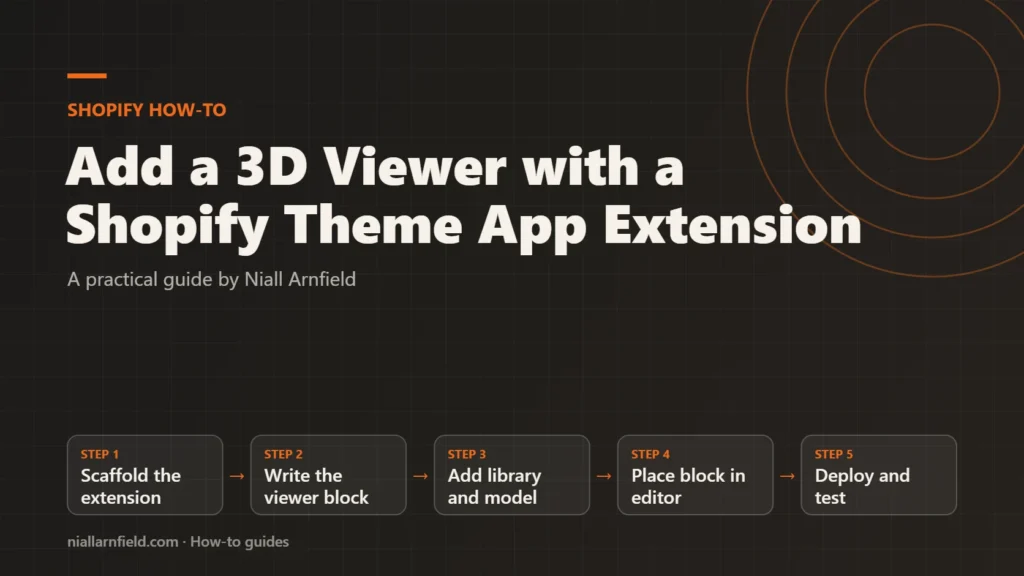
- Scaffold the extension
- Write the viewer block
- Add library and model
- Place block in editor
- Deploy and test
Choose the block type, or a simpler option
- App block: sits inside a section, such as the product information area. Merchants place it where they want it, so this is the right choice for a viewer.
- App embed block: injects code into the page head or body. Merchants switch it on in the theme editor’s app embeds. Use it for floating widgets, not for a viewer that belongs in one place.
- Native 3D media: Shopify accepts GLB and USDZ files as product media, up to 500 MB each. Shoppers view the model on the product page with no custom code.
If native 3D media meets your needs, skip the app. Build a custom viewer when you need your own controls, configuration or per-product models. Shopify’s product media documentation lists the file types and limits. For a wider look at 3D on Shopify, read the Shopify 3D models and AR guide.
Step by step
-
Scaffold the extension with Shopify CLI
From your app’s folder, run
shopify app generate extension. Choose Theme app extension and give it a name. The command creates a working example, so you can see the structure before you change anything. Then runshopify app devto preview it on a development store. Add--themefollowed by a theme ID or name to pick the host theme. -
Create the block file
Inside the extension, add a file named
viewer.liquidin the blocks folder. The file name, without the extension, becomes the block’s handle. Keep the markup and the schema in this one file, so the block is easy to review and to remove later. -
Write the markup and schema
The block renders only when the merchant has entered a model URL, and the merchant places it only in the product template. It passes the product’s ID to the markup and reads the model URL from a block setting. Treat this as a starting point, and test it against your theme’s product layout:
{% if block.settings.glb_url != blank %}
  <div class="model-viewer-block" data-product-id="{{ product.id }}">
    <model-viewer src="{{ block.settings.glb_url }}" alt="{{ product.title | escape }}" camera-controls></model-viewer>
  </div>
  <script type="module" src="{{ 'model-viewer.min.js' | asset_url }}"></script>
{% endif %}
{% schema %}
{"name": "3D viewer", "target": "section", "settings": [{"type": "text", "id": "glb_url", "label": "GLB file URL"}]}
{% endschema %}
The
targetvalue ofsectiontells Shopify that the block sits inside a section. Themodel-viewerelement is a web component that displays the model. -
Add the library and the model file
Download the model-viewer build from its official project, and place the file in the extension’s assets folder. Shopify limits an extension’s files to 10 MB in total, so keep the model itself on separate hosting. Name it
model-viewer.min.jsso it matches the snippet. Host your GLB file on a public HTTPS address. Throttle the connection in the browser’s developer tools to see the real cost before shoppers do. Read the GLB file guide before you export, because file size and structure affect load time. The file’s server must allow cross-origin requests from your store domain, or the browser blocks it. -
Pass per-product models with a metafield
A URL typed into the block applies to every product using that template. For a different model per product, create a text metafield on products in the Shopify admin. Read it with
product.metafields, using your own namespace and key. Then use{{ product.metafields.custom.glb_url.value | default: block.settings.glb_url }}in thesrcattribute, so the block still works when the metafield is empty. -
Place the block in the editor
Open the product template in the theme editor of an Online Store 2.0 theme. Add the app block in the section where the viewer should appear, choosing it from the Apps list. Paste the GLB URL into its setting if you use one. Preview a product before you publish, and check that the model appears in the right place on mobile as well as desktop.
-
Deploy and test the release
Run
shopify app deployto release the extension. Add--messageto label the version, or--no-releaseto create a version without releasing it. Then open a product page and a collection page. The viewer should appear on the product page only, and nowhere else. Note the version number and what changed, so the merchant can tell one release from the next.
Check the viewer and the page speed
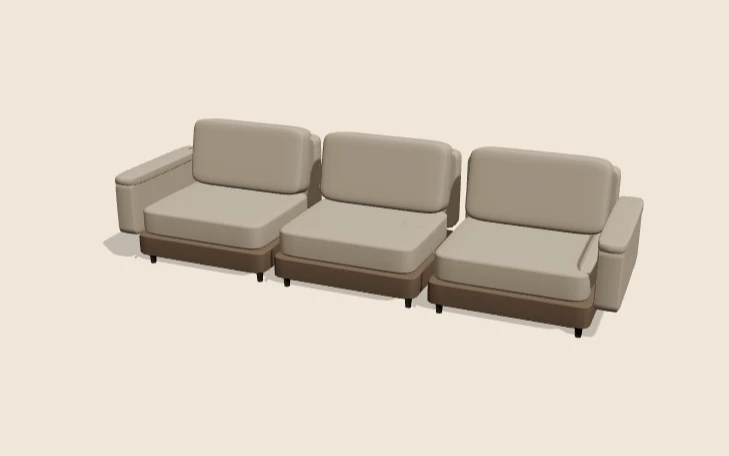
Open a product page and confirm the model loads and rotates under your finger or mouse. Use the browser’s network panel to check that the library loads on product pages only. Then run PageSpeed Insights before and after, because a heavy model can slow the first view and affect LCP.
Test on a real phone as well as a desktop browser. Mobile connections are slower, and a model that feels quick on a laptop can stall on a phone. If the viewer is slow, the fix is usually a smaller model or a later load, not a bigger script.
Common mistakes and when to get help
- Adding the block to a template other than the product template.
- Hosting the GLB file without cross-origin headers, so it never loads.
- Using a very large model file. Compress it first, as the Draco compression guide describes.
- Showing a blank box while the model loads. Use a poster image or placeholder instead.
Once the viewer must choose options, change variants or send selections to the cart, the project grows. My product configurator service covers that wider build. The free GLB viewer lets you preview a model file before you upload it.
Related how-to guides
- Shopify Redirects at Scale for Bulk Migrations: Shopify lets you redirect old URLs to new ones, one at a time or by CSV import.
- Shopify App Bloat Audit: Find and Remove Leftovers: Uninstalled apps can leave scripts, snippets and embeds behind, and these slow your store.
- Canonical Tags on Shopify Collection Product URLs: Shopify products can be reached through a collection URL, which creates a second address for the same content.
- Faceted Navigation SEO on Shopify: A Practical Guide: Shopify filters can create many near-duplicate URLs, and search engines waste time crawling them.
- Shopify Image Optimisation with image_url and image_tag: Large product photos slow Shopify stores, especially on phones.
- Variable Products at Scale in WooCommerce Stores: A variable product with hundreds of combinations can make product pages slow and hard to manage.
- Compress Textures with KTX2 for 3D Models: Large texture images make 3D models slow and heavy in graphics memory.
See all the Shopify, WooCommerce and 3D how-to guides.
Common questions
What is the difference between an app block and an app embed?
An app block sits inside a section, and the merchant places it where they want. An app embed injects code into the page head or body, and the merchant switches it on in the theme editor’s app embeds. For a viewer, use an app block, so the code runs only where it is placed.
Do I need a custom viewer if I already have GLB files?
Not always. Shopify accepts GLB and USDZ files as product media, and shoppers can view the model on the product page with no custom code. Build a custom viewer when you need your own controls, options or per-product models.
Will a 3D viewer slow my product pages?
It can. The library and model add weight. Keep the code on product templates only, compress the GLB file, and check LCP before and after. A poster image or placeholder keeps the first view looking complete while the model loads.