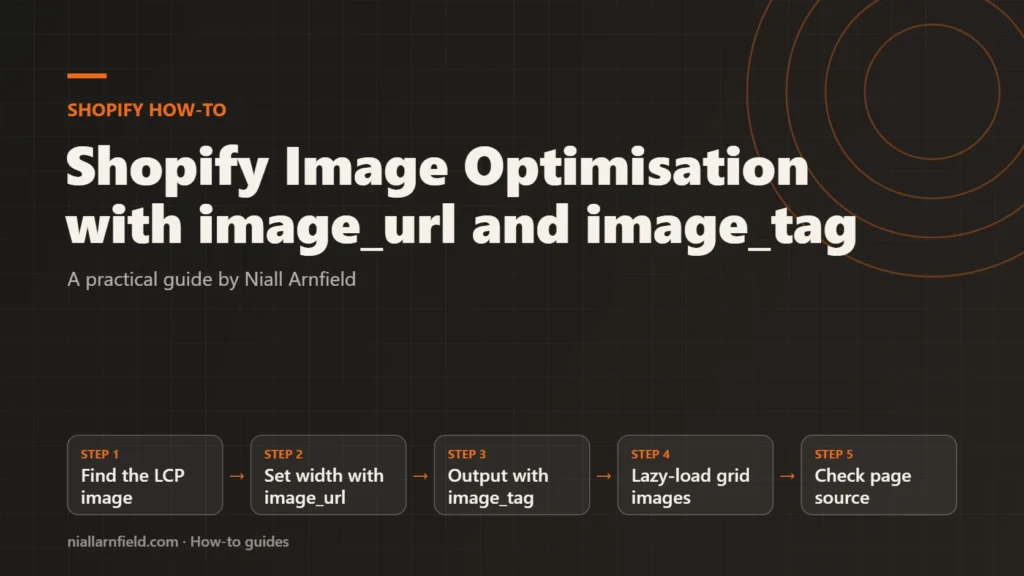
Large product photos slow Shopify stores, especially on phones. The fix is to let Shopify’s image filters generate sized, responsive markup, then load the main image eagerly and the rest lazily.
Speed up your Shopify storeSee selected work
Why images slow Shopify stores
Images are often the heaviest part of a product page, and a large photo sent to a phone wastes data and delays the first view. Google measures this experience with Core Web Vitals. Largest Contentful Paint (LCP) tracks how long the biggest visible element takes to appear. On many product pages, that element is the main image, so its speed shapes the score shoppers feel most.
Shopify serves images from its own content network, which picks WebP or AVIF for supporting browsers, so some of the heavy work is done for you. Your theme still decides which size the browser requests, when it starts loading each image, and how the markup describes the picture. Those decisions sit in Liquid, and that is where this guide works.
- Find the LCP image
- Set width with image_url
- Output with image_tag
- Lazy-load grid images
- Check page source
Decide your approach first
Use Shopify’s filters rather than building image addresses by hand. Shopify’s performance guidance on filter chains recommends passing the image through image_url and then image_tag, so the output stays consistent and sized correctly.
- image_url sets the largest width and any crop. Shopify’s CDN chooses the file format for each browser, so you rarely need its format option.
- image_tag outputs the
imgelement, withsrcset,sizes, width, height and alt attributes, and any other attribute you pass. - Hand-built URLs are fragile, and they miss the responsive sizes that
image_tagadds for you.
Before you start, list your image slots: product, collection grid, homepage banner and blog. A hero image needs different settings from a grid thumbnail. Decide the largest size each slot needs, based on the width it fills in your layout. If you are unsure how your theme is built, a Shopify developer can read the templates with you.
Why the size settings matter
Each image needs a sensible ceiling. A product photo shown at a modest width on a phone does not need the largest file in your library. The image_url width sets that ceiling, and image_tag then offers smaller candidates below it, so the browser can pick the right file for each screen.
Sizes also prevent layout shift. The filters derive the width and height attributes from the image’s aspect ratio, so the browser reserves room before the image arrives. That keeps the page steady while it loads, which Core Web Vitals also measure. Check the layout of each slot, not just the file size.
Step by step
-
Find the element that sets LCP
Run PageSpeed Insights on a product page and read the LCP element it reports. In Chrome DevTools, the Performance panel also marks that element. On most product pages, the element is the featured image. That image gets eager loading and high priority, and other images do not.
-
Set the largest width with image_url
Pass the image object through
image_urland set the largest width the slot needs. For example, 1200 suits a large product image on a desktop layout. The filter accepts widths up to 5760 pixels, but most slots need far less, so set the value from your layout rather than the maximum. -
Output the hero image with image_tag
Chain
image_tagafterimage_url. Give it the widths to offer, a sizes hint and the loading attributes. Without a loading value, Shopify may add lazy loading to images in sections lower down the page. This line suits the main product image, and you can adapt the values to your own layout:{{ product.featured_image | image_url: width: 1200 | image_tag: widths: '400, 800, 1200', sizes: '(min-width: 750px) 50vw, 100vw', loading: 'eager', fetchpriority: 'high' }}The widths list tells the browser which sizes exist. Widths above the
image_urllimit are dropped, so the markup never asks for an upscaled image. -
Lazy-load images below the fold
In collection grids, load the first few images eagerly and the rest lazily. Lazy loading tells the browser to wait until an image nears the screen. Adjust the count to match the number of images visible before a shopper scrolls:
{% for product in collection.products %}
  {% if forloop.index <= 4 %}
    {% assign image_loading = 'eager' %}
  {% else %}
    {% assign image_loading = 'lazy' %}
  {% endif %}
  {{ product.featured_image | image_url: width: 800 | image_tag: widths: '400, 600, 800', sizes: '(min-width: 750px) 25vw, 50vw', loading: image_loading }}
{% endfor %}
This loop is a starting point. Test it on a phone and a desktop screen, because the number of visible images changes with the grid.
-
Never lazy-load the LCP image
Do not set
loading: 'lazy'on the hero or any image in the first screen. Lazy loading delays the download of that image, which can slow LCP. Shopify’s guidance on never lazy-loading the LCP image calls this one of the most common and damaging mistakes in themes. -
Write useful alt text in the admin
Add alt text to each product image in the Shopify admin. By default, image_tag uses that text, or the resource title if none exists. Describe what the shopper sees, such as an oak dining table with four chairs, seen from the side. Do not stuff keywords into it, because screen reader users hear every word. Leave alt text empty only for purely decorative images that add no meaning.
-
Check the output in page source
View the source of a product page. The hero image should show
fetchpriority="high", asrcsetwith several widths, and no lazy attribute. Images further down should showloading="lazy". Confirm eachimgtag carries a sensible alt attribute. If it shows only the product title, add alt text in the admin and test again.
Check that it worked
Run PageSpeed Insights on the same product page before and after, and compare LCP. Test on a phone-sized screen, since data and image size matter most there. Then review the Core Web Vitals report in Search Console over time, because it covers many pages, not one.
Also check the layout. A slot that loads without reserved space can jump as the image arrives, and that shift counts against your Core Web Vitals score. Scroll the page slowly and watch the grid and the hero while the images load.
Common mistakes and when to get help
- Lazy-loading the hero image, which delays the main element.
- Using one large width for every thumbnail, which sends more data than the layout needs.
- Forcing a file format. Shopify’s CDN already serves WebP or AVIF where the browser supports them.
- Forgetting alt text on product images, or leaving the sizes hint out.
If LCP stays high after these changes, the cause may be scripts or fonts rather than images. The Shopify speed optimisation service and the Core Web Vitals guide cover that wider picture. A technical SEO audit can also show which template causes the slowest page.
Related how-to guides
- Shopify Redirects at Scale for Bulk Migrations: Shopify lets you redirect old URLs to new ones, one at a time or by CSV import.
- Add a 3D Viewer with a Shopify Theme App Extension: A 3D viewer should load on product pages only, and only where the merchant places it.
- How to Get Past Shopify's Product Variant Limit: Shopify caps how many variants and options one product can have, so a highly configurable item can run out of room.
- Shopify App Bloat Audit: Find and Remove Leftovers: Uninstalled apps can leave scripts, snippets and embeds behind, and these slow your store.
- Canonical Tags on Shopify Collection Product URLs: Shopify products can be reached through a collection URL, which creates a second address for the same content.
- Compress Textures with KTX2 for 3D Models: Large texture images make 3D models slow and heavy in graphics memory.
- Embed a 3D Viewer in WordPress: Step by Step: WordPress refuses GLB files by default, and a 3D script adds weight to every page.
See all the Shopify, WooCommerce and 3D how-to guides.
Common questions
Should every image use lazy loading?
No. Lazy loading tells the browser to wait until an image nears the screen. Use it for images below the fold. The main product image usually causes LCP, so it should load eagerly with high priority, and the browser fetches it first.
Can I serve WebP or AVIF through image_url?
You do not need to. Shopify’s performance guidance says its CDN serves WebP or AVIF automatically when the browser supports them, and the image_url format option lists only pjpg and jpg. Correct sizing and eager loading of the hero image are the better places to start.
What width should I choose?
Pick the largest size the slot shows on a typical desktop screen. The widths list then gives smaller screens smaller files. Test with your own layout and check the rendered srcset, rather than copying numbers from a guide.