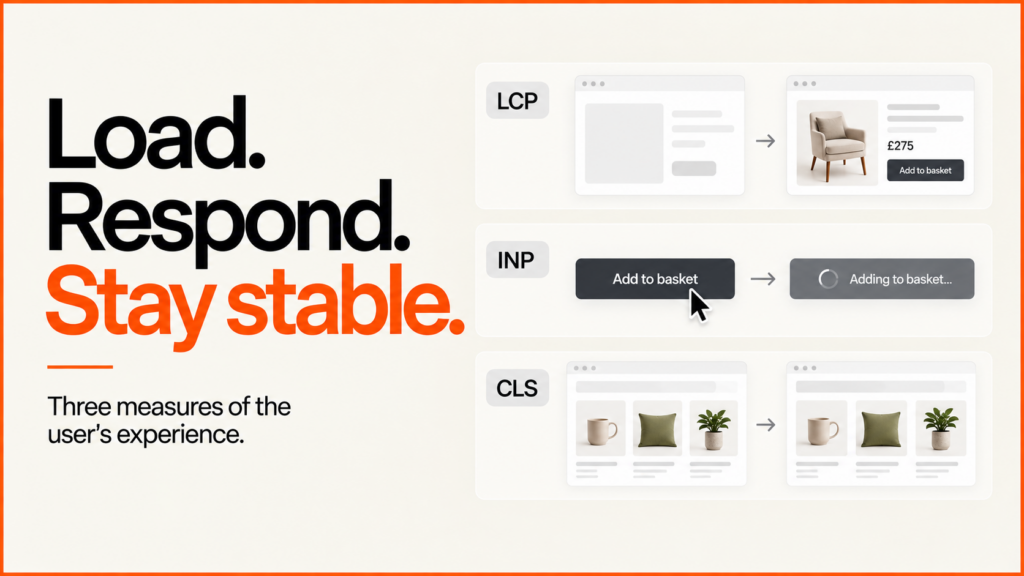
Core Web Vitals describe three aspects of a visitor’s experience: how the main content loads, how the page responds to interaction and whether the layout moves unexpectedly. They are useful diagnostic signals, but a passing result is not a substitute for a clear offer or a working buying journey.
Discuss your projectSee selected work
The first step is to identify which measurement you are looking at. A single Lighthouse run and a field report based on real visits answer different questions.
The current good thresholds
| Metric | Experience | Good threshold |
|---|---|---|
| Largest Contentful Paint, LCP | Main-content loading | 2.5 seconds or less |
| Interaction to Next Paint, INP | Response to interaction | 200 milliseconds or less |
| Cumulative Layout Shift, CLS | Visual stability | 0.1 or less |
Google assesses these targets at the 75th percentile, with mobile and desktop considered separately. Its Web Vitals documentation is the reference for the current metrics and definitions. A site should meet all three targets; averaging their numbers together would not produce a meaningful score.
A Lighthouse score is a lab result
Lighthouse provides a controlled diagnostic run. Its performance score combines lab metrics using a scoring model described in Chrome’s scoring documentation. The number can vary with the test environment, so retain the run conditions and individual measurements.
Field data reflects actual visits and interactions. A new or low-traffic page may not have enough public field data. “No data” means the measurement is unavailable; it does not mean the site passed or failed.
A default navigation-only Lighthouse run does not observe a real visitor’s full interaction history. Total Blocking Time can help investigate responsiveness in the lab, but it should not be relabelled as a measured field INP result.
For a dated report example and guidance on missing field results, read Lighthouse versus Core Web Vitals.
A measured example: a mobile header that moved the page
On 23 September 2026, I investigated a layout shift on this website. The mobile navigation initially occupied its expanded height, then collapsed when the deferred script enabled the menu. At a 390-pixel viewport, the header changed from roughly 191 to 80 pixels high. The content below it moved even though its own layout had not changed.
The fix was to set the JavaScript-enabled class in the existing small head script, before the styles were applied. The menu could then start in its intended state. The no-JavaScript fallback remained available when JavaScript was disabled, and I checked the menu opened and closed after the change.
| Measurement | Before: 05:16 UTC | After: 05:22 UTC |
|---|---|---|
| Cumulative Layout Shift | 0.1002 | 0.0040 |
| Largest Contentful Paint | 1.672 seconds | 1.672 seconds |
| Total Blocking Time | 13.5 milliseconds | 64 milliseconds |
| Performance score | 96 / 100 | 99 / 100 |
These are two recorded runs of the public homepage, not an average or a controlled experiment. The test service recorded different host performance between runs. Layout stability improved in the second observation; loading time was essentially unchanged, and blocking time was higher. Retaining all four measurements gives a more useful account than reporting only the headline score.
No public real-user dataset was available for this URL. The results do not establish a field Core Web Vitals pass, a ranking increase or a conversion improvement. The separate responsive-image changes made later that morning are not included in this comparison.
How to investigate a similar shift
- Record a fresh mobile load and locate the unexpected movement. The element that moves may be below the element causing it.
- Compare the header, image and embed dimensions before and after their scripts or resources arrive.
- Make one scoped change and verify the actual interaction, including keyboard access and the fallback state.
- Retest the public URL and check that the response contains the new code. A cached earlier version can make a completed fix appear ineffective.
Google’s layout-shift investigation guidance explains the distinction between affected elements and the underlying cause. Its PageSpeed Insights documentation explains the separate lab and field reports.
Another cause: contents links added after loading
Later that morning, the ecommerce service page still showed a mobile layout shift. The header correction was already present. Its contents navigation arrived empty, then JavaScript inserted ten links above the article and pushed the body down.
I isolated that insertion in a browser test, then moved the links into the server-rendered HTML. The released version retained all ten working links, including when JavaScript is unavailable. The affected templates now receive their contents and heading anchors together.
| Metric | 09:05 UTC | 09:25 UTC |
|---|---|---|
| CLS | 0.2212 | 0.0194 |
| LCP | 1.521 seconds | 1.826 seconds |
| TBT | 0 ms | 0 ms |
| Score | 89 / 100 | 99 / 100 |
Both observations used the same canonical URL without a cache-busting query. Layout shift fell, while LCP was slower in the later run. These are individual lab observations, with no public field dataset or demonstrated ranking or conversion gain. The lesson is to find the late insertion itself: the paragraph that moves may simply be the element beneath it.
Ecommerce images and LCP
A compressed image can still be the wrong image for a phone. Start with the file the browser actually downloads, the space it occupies and when the customer needs it. A product card, a full-width hero and a zoom view have different jobs.
Check whether the image is the LCP element
Inspect the element in a performance trace. On a product page it may be the main photograph, but on another template it could be a heading or a promotional banner. Google’s LCP optimisation guide separates server response, resource discovery, download and rendering delay, and a smaller image only tackles part of that chain. If a script hides the product until it finishes, cutting image bytes may leave the main delay in place.
Serve one image at appropriate sizes
On 23 September 2026 I compared two isolated pages using an existing image from the beauty brand case study. One always requested the 1,600-pixel file. The other offered 480, 800 and 1,600-pixel candidates with a matching display-size hint. The selected file fell from 81.8 KB to 12.7 KB at a 390-pixel viewport on standard density, and to 28.1 KB at double density. Desktop still needed the full 1,600-pixel file. That is 84.4% and 65.7% fewer image bytes on mobile, which is a payload difference, not a whole-page saving or a conversion result.
Median lab LCP moved from 1.672 to 1.272 seconds at mobile 1× and from 1.676 to 1.356 at 2×, across 18 loads in Chrome 153 with Slow 4G and 4× CPU throttling over loopback. These are timings for one small fixture. They are not Lighthouse scores, phone measurements or production results, and the live case study already used responsive images when I inspected it. The measurements and implementation example can be downloaded.
<img src="product-1600.webp"
  srcset="product-480.webp 480w,
          product-800.webp 800w,
          product-1600.webp 1600w"
  sizes="(max-width: 1168px) calc(100vw - 48px), 1120px"
  width="1600" height="900"
  loading="eager" fetchpriority="high"
  alt="Describe this product image">
The sizes value matches a full-width container with 24-pixel margins and a 1,120-pixel maximum. Do not paste it into a half-width gallery. Use the real breakpoints and column widths, give accurate source dimensions and keep the aspect ratio. The MDN image reference explains how srcset and sizes work together.
Prioritise the first image only
Make the likely LCP image discoverable in the initial HTML and do not lazy-load it. A high fetch priority is a hint for one important image, not for every thumbnail. Defer images further down, then test scrolling and gallery controls. Keep a larger asset for zoom where the buying decision needs detail, such as finish texture on furniture or shade information on beauty products, and review the result visually.
Verify the delivered page, not the media library: check the selected currentSrc, rendered width and transferred bytes at relevant widths and densities, and watch for caching, failed requests and layout movement. A cached larger image can distort what a resize appears to prove.
Choose a targeted optimisation
| Concern | Evidence to collect | Potential intervention |
|---|---|---|
| Main content loads late | Resource timing and render dependencies | Correct discovery, sizing or unnecessary blocking work |
| A control responds late | Interaction trace and component update cost | Reduce or reschedule the expensive work |
| Content jumps | The elements and insertion causing movement | Reserve space or change the insertion behaviour |
Retest the whole task. A script change that improves a measurement while breaking product selection is a regression. A lighter image that obscures a material detail can make the page less useful.
For an image-specific investigation, the responsive image and LCP example separates selected image bytes from local rendering timings and explains why neither establishes a live-site improvement.
Tools for testing and monitoring
Use PageSpeed Insights to distinguish the available field section from its lab test. Use Chrome DevTools for a more specific performance investigation and Search Console to review reported field page groups. Where appropriate, a deliberately designed real-user measurement implementation can reveal experiences your lab setup does not reproduce.
Keep monitoring proportional. Record what is collected, avoid unnecessary personal information and make the measurements useful to the person responsible for fixes. A dashboard with no release context is difficult to interpret.
For interactive product pages, the 3D configurator performance-budget guide separates the initial page load from opening the viewer and changing a product choice.
For Shopify stores specifically, see Shopify speed optimisation.
How performance fits into SEO
Performance supports a usable page. It does not guarantee a particular position or compensate for an irrelevant answer. Treat search visibility, customer behaviour and technical performance as related but separate measurements.
When assessing an improvement, compare consistent conditions and account for the field-reporting window. A new deployment cannot instantly rewrite the historical visits included in a rolling report.
For practical implementation, see WordPress speed optimisation or a technical SEO audit. Send the affected URLs and reports if you want help turning a score into a specific investigation.
Related guides
- If the slow templates are in a Shopify theme, my Shopify SEO services cover theme and app performance alongside indexing and collection structure.
- On a WordPress site, speed sits alongside other search basics. The WordPress SEO checklist puts them in one list.
- If speed problems run deep in an old theme, a website redesign can fix them at the root.
- Product images are often the largest element on a store page. The Shopify image optimisation guide shows how to serve them at the right size with image_url and image_tag.