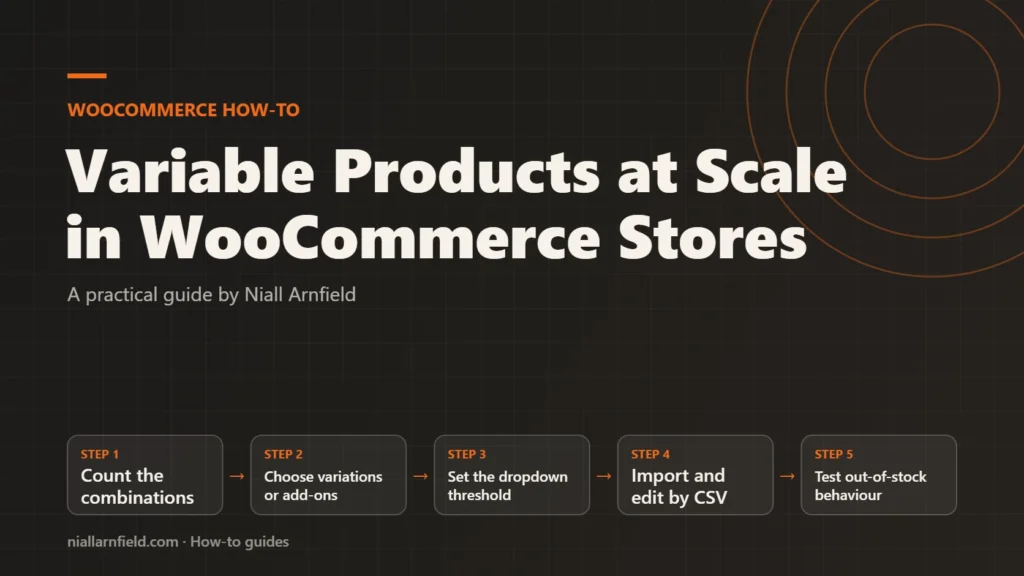
A variable product with hundreds of combinations can make product pages slow and hard to manage. This guide shows how to raise or lower the dropdown threshold, edit variations in bulk and import them from a spreadsheet. It also explains when attributes, add-ons or separate products fit better.
Discuss your WooCommerce storeSee selected work
Why large variable products cause trouble
A variable product offers one set of options, such as size and colour, and each combination becomes a variation with its own SKU, stock level and price. Three sizes and four colours give twelve variations. Add a material and a finish, and the count climbs into the hundreds. Each variation is stored as its own record, so the product editor and the product page both have more to load.
After each choice, WooCommerce works out which options remain available, and it does this with AJAX requests. For a small product, this is invisible. For a product with many variations, it can slow the page noticeably, which is why WooCommerce has a limit built in.
- Count the combinations
- Choose variations or add-ons
- Set the dropdown threshold
- Import and edit by CSV
- Test out-of-stock behaviour
What to decide before you start
Before you touch the catalogue, decide what each option really is. The right structure depends on whether the choice changes the product itself, carries its own stock, or simply adds a cost. Make that decision with the store owner, because it affects the catalogue for years.
- Variations suit options that change the product and need their own SKU and stock, such as size or colour.
- Add-ons suit optional extras, such as gift wrap or engraving, that do not need their own stock record.
- Separate products suit items that differ in photography, description or range, even if they look alike.
For example, a desk lamp might vary by arm length and shade colour, which are variations. A gift box or engraving would be an add-on. Model the choices on paper first, and count the combinations before you build anything.
Step by step
-
Count the combinations first
Multiply the number of values for each attribute to get the total. Check how many of those combinations you will actually sell. If only a fraction are real, exclude the impossible ones now rather than creating them and deleting them later.
-
Set the dropdown threshold
WooCommerce shows linked, filtered dropdowns only for variable products with 30 or fewer variations by default. Above that, the dropdowns stay static. You can change the limit with the
woocommerce_ajax_variation_thresholdfilter. This example raises it to 50, so treat it as a starting point and test it on a real product page.function custom_wc_ajax_variation_threshold( $threshold, $product ) { return 50; } add_filter( 'woocommerce_ajax_variation_threshold', 'custom_wc_ajax_variation_threshold', 10, 2 );The WooCommerce documentation advises using the lowest value that works for your store. Higher values can slow the product page down. Above the threshold, shoppers can choose a combination that is not available, then see a no-products message.
-
Tidy the attribute lookup table
Since WooCommerce 9.1, an optional optimised method updates the product attribute lookup table. That table supports attribute filtering. Find the option under WooCommerce, then Settings, then Product, then Advanced, where it is labelled Optimized updates. It is opt-in, and some extensions may not support it.
If the table looks stale, you can rebuild it from the command line with
wp wc palt regenerate. Runwp help wc paltfirst to confirm the options on your version. -
Bulk edit variations with a CSV
Export the product as a CSV, edit the variation rows in a spreadsheet, then import the file again. Give each variation its own SKU, and point its Parent column at the parent product. Attribute names and values must match the parent row exactly, or the variations will not be created.
Put the parent row before its variations in the file. Split very large files into smaller batches, and test each batch on staging first. Upload limits are set by your host, so a large file may need splitting for that reason alone.
-
Import variations in the right order
If you convert a simple product into a variable product, the parent row changes its Type from simple to variable, and each variation row needs its Type set to variation. Check the importer documentation for the exact columns, and import the parent first, on staging, before you add the variations.
-
Set defaults and visibility
Set a default option for each variable product so the page does not open on an empty state. Check that each attribute is visible on the product page, and that global attributes match your attribute library. These small settings save support questions later.
-
Check stock and out-of-stock options
Test a few combinations that are out of stock. Confirm the dropdowns behave as you expect and that the out-of-stock message reads clearly. Place one order for an in-stock variation and confirm that the right variation reduces stock.
Check that the product scales
Open the product page on a phone and on a desktop, then time how long the page takes to become usable. Compare the result with a simpler product in the same category. A large gap points to the variation count, not the theme or hosting.
Check the product editor too. A slow editor on a product with hundreds of variations is a sign that the structure needs to change. Consider whether some options should move to add-ons, or whether a different product page design would help.
Common mistakes and when to get help
The most common mistake is building every combination by default, even when shoppers only buy a few. Another is raising the threshold without testing the product page. A third is importing a file with mismatched attribute names, which quietly creates the wrong variations. Check each of these before you publish.
Get help if the catalogue has thousands of variations or the product page still struggles after tuning. I can review the structure and recommend a better model. This sits within my WooCommerce developer work and WooCommerce product options advice.
Related how-to guides
- WooCommerce Faceted Search: Speed and SEO Guide: Faceted search lets shoppers narrow products by size, colour, price and more.
- How to Migrate WooCommerce to HPOS Safely: Older WooCommerce stores save orders in the WordPress posts tables, and that slows down large stores.
- WooCommerce Speed: Caching and Scripts Guide: WooCommerce cart, checkout and account pages cannot be cached like a blog post.
- WooCommerce Structured Data: Product Markup Guide: WooCommerce adds basic Product data to product pages by default, but Google merchant listings need more.
- Shopify to WooCommerce Migration: Step-by-Step Guide: Moving from Shopify to WooCommerce means moving products, customers, orders and every old web address.
- Optimise glTF for the Web: A Step-by-Step Guide: A heavy 3D model slows every product page it appears on.
- Canonical Tags on Shopify Collection Product URLs: Shopify products can be reached through a collection URL, which creates a second address for the same content.
See all the Shopify, WooCommerce and 3D how-to guides.
Common questions
What is the default limit for variation dropdowns?
By default, WooCommerce shows linked, filtered dropdowns for variable products with 30 or fewer variations. Above that, the dropdowns stay static. You can change the number with the woocommerce_ajax_variation_threshold filter, but test the product page after any change.
When should I use add-ons instead of variations?
Use add-ons for optional extras that do not change the product itself, such as gift wrap or engraving. Use variations for options that carry their own SKU and stock, such as size or colour. Choose separate products when the items differ in photos, copy or range.
Can I bulk edit variations without a plugin?
Yes, through a CSV round trip. Export the product, edit the variation rows, and import the file again. Keep the parent row first, match attribute names exactly, and split very large files. Test every batch on staging before you run it on the live store.