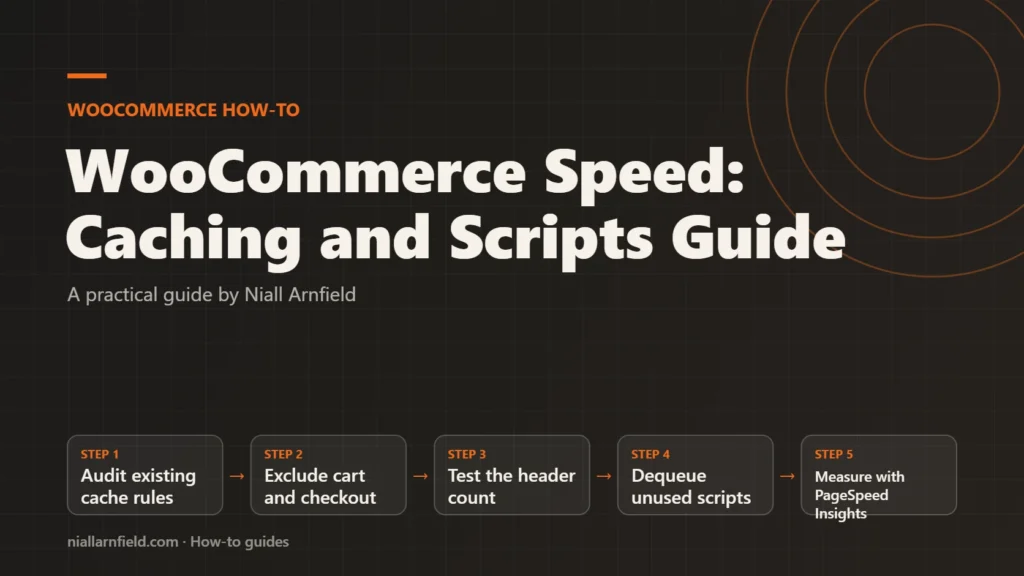
WooCommerce cart, checkout and account pages cannot be cached like a blog post. The fix is to keep those pages out of the cache, check the header cart count, and stop loading shop scripts on pages that do not need them.
Discuss your WooCommerce storeSee selected work
Why WooCommerce speed is different
A page cache saves a finished copy of a page and serves it to everyone. That works well for a blog post. It fails for a cart, because the cart shows what one shopper has added. A cached copy can show the wrong items, or someone else’s details.
A page cache and an object cache solve different problems. A page cache skips WordPress for most visitors. An object cache speeds up the work WordPress still does. Both help, but they need different rules for logged-in shoppers. Caching rules also affect shoppers who never log in, because a cart can start as an anonymous session.
Most slow WooCommerce stores have two causes. Caching is either missing or too broad. The shop also loads its scripts on every page, including pages that never use them. The delay often appears at add to cart and checkout, where shoppers are most likely to leave. For the wider site, see my WordPress speed guide.
- Audit existing cache rules
- Exclude cart and checkout
- Test the header count
- Dequeue unused scripts
- Measure with PageSpeed Insights
What to decide before you start
Settle three things before you change any settings. Each one affects the steps below.
- Which caching layer you use: a plugin such as WP Rocket or W3 Total Cache, a host-level cache, or a reverse proxy such as Varnish.
- Whether your host offers a persistent object cache, usually Redis or Memcached.
- Which pages hold personal data: cart, checkout, my-account, and any mini-cart in the header.
Write the answers down. Your developer and your host will both need them. If you are unsure which caching layer you run, ask your host to confirm it.
Step by step
-
Check your current cache exclusions
Open your caching plugin or host dashboard and find the list of excluded pages. Do not assume the defaults are right. Some plugins skip WooCommerce pages automatically, while others need a manual rule. Note what is excluded now, so you can compare later.
-
Exclude cart, checkout and my-account
WooCommerce’s caching guidance says the Cart, My Account and Checkout pages need to stay dynamic, because they show information specific to the current customer. Many caching plugins already skip them, but confirm it in your own settings. The guidance also lists cookies, such as
woocommerce_items_in_cart, that you can exclude from caching.Test the rule: log out, add an item, then refresh the cart. If the item disappears, the cache is serving an old copy. Include any language or currency prefix your store uses in each path, because the same page can have several addresses.
-
Check the header cart count
The wc-cart-fragments script refreshes the classic mini-cart count after an add to cart, using a background request. Since WooCommerce 7.8, it is no longer loaded on every page. It loads when the store uses the Mini Cart widget, so many stores already load it less than before. Your theme or a plugin may still add it everywhere.
Add an item on a shop page and check that the count changes. If the count stays wrong, clear the page cache and test again. That rules out a stale copy. A header mini-cart appears on many templates, so check more than one.
-
Enable a persistent object cache
A persistent object cache keeps database results in memory, usually with Redis or Memcached. WordPress and WooCommerce ask the database for the same data many times on each page, so this can reduce that work. Ask your host whether they offer it before you install anything. Object caching helps most on stores with many products, plugins or admin-heavy work. On a small store the gain may be modest, so measure before you pay for it.
Keep shopper session data out of any cache. If your caching system offers database caching, WooCommerce’s guidance suggests excluding _wc_session_ from it.
-
Dequeue scripts where not needed
The wp_dequeue_script() function removes a script that a theme or plugin has already added to a page. Pair it with a conditional check, so the cart script loads only where shoppers need it. Add this to a child theme or a small site plugin, not the parent theme, so updates do not undo it.
add_action( 'wp_enqueue_scripts', function () {
    if ( ! is_woocommerce() && ! is_cart() && ! is_checkout() && ! is_account_page() ) {
        wp_dequeue_script( 'wc-cart-fragments' );
    }
}, 99 );
This is a starting point, not a finished fix. It removes the cart script on blog posts and other non-shop pages. Before you remove anything, list the scripts on a blog post and a product page in the page source, and note any you do not recognise. Test every template you use, and check add to cart on a product page.
-
Measure real visitor speed
Run your key pages through PageSpeed Insights: the cart, a product page, and a blog post. Its field data comes from the Chrome User Experience Report, which tracks real visitors over a rolling 28 days. Its lab data is a single test. Watch Interaction to Next Paint (INP), because it shows how fast the page responds when a shopper taps add to cart. See my Core Web Vitals notes for what each score means.
Record the scores before you change anything, and keep the same test pages each time so the scores compare fairly. Test again after each change, and allow a few weeks for field data to update. If lab scores look good but field data is poor, the gap usually comes from slower real devices and networks.
How to check it worked
Log out, open the shop in a private window, add an item and open the cart. The count should match, and the cart should list only that item. Repeat the test in a second browser with different items. If the second browser shows the first basket, the cart page is still cached. Keep a simple log of each change, with the date and the score. When a score drops after an update, the log shows the cause quickly.
- Excluding the cart but not checkout, so checkout still shows an old basket.
- Editing the parent theme, where the next update removes the change.
- Removing the cart script without testing add to cart on a product page.
When to get help
Ask for help if carts show the wrong items, the header count stays stuck, or checkout breaks after a change. A WooCommerce developer can test your theme and plugins together. More detail is on my WooCommerce developer service page.
Related how-to guides
- WooCommerce Faceted Search: Speed and SEO Guide: Faceted search lets shoppers narrow products by size, colour, price and more.
- How to Migrate WooCommerce to HPOS Safely: Older WooCommerce stores save orders in the WordPress posts tables, and that slows down large stores.
- Shopify to WooCommerce Migration: Step-by-Step Guide: Moving from Shopify to WooCommerce means moving products, customers, orders and every old web address.
- WooCommerce Structured Data: Product Markup Guide: WooCommerce adds basic Product data to product pages by default, but Google merchant listings need more.
- Variable Products at Scale in WooCommerce Stores: A variable product with hundreds of combinations can make product pages slow and hard to manage.
- Optimise glTF for the Web: A Step-by-Step Guide: A heavy 3D model slows every product page it appears on.
- How to Get Past Shopify's Product Variant Limit: Shopify caps how many variants and options one product can have, so a highly configurable item can run out of room.
See all the Shopify, WooCommerce and 3D how-to guides.
Common questions
Should I cache WooCommerce product pages?
Often yes. A product page looks the same to most visitors, so a page cache can serve it quickly. Keep the cart, checkout and my-account pages out of the cache. If your product pages show personal prices, for example for logged-in trade customers, test those pages carefully before caching them.
Will removing WooCommerce scripts break my store?
It can. A script removed on the wrong page can stop add to cart, the mini-cart or product filters from working. Test each template after a change. Keep the script on shop and product pages, and place a test order through to payment in a test mode before you go live.
Which speed score matters most for a shop?
Watch Largest Contentful Paint, Interaction to Next Paint and Cumulative Layout Shift. INP is the one that reflects add to cart, because it measures how quickly a page responds when a shopper taps a button. Use field data in PageSpeed Insights rather than one lab test alone.