Faceted search lets shoppers narrow products by size, colour, price and more. Each filter can create many new URLs and slow the store down. This guide shows how to build filters that stay fast, and how to stop filtered URLs from wasting search engine crawling.
Discuss your WooCommerce storeSee selected work
Why filters slow stores and confuse search engines
Every filter a shopper applies can produce a new address. Colour, size and price combined might create thousands of unique URLs, many of which show no products at all. Search engines try to crawl those addresses, which uses time they could spend on your real product and category pages. Filters also ask the database harder questions, so the page can feel slow to the shopper.
Variable products make this harder. WooCommerce stores variation data in a way that makes filtering by variation attributes expensive. WooCommerce developers have described this as a long-standing limitation. The attribute lookup table was built partly to address it.
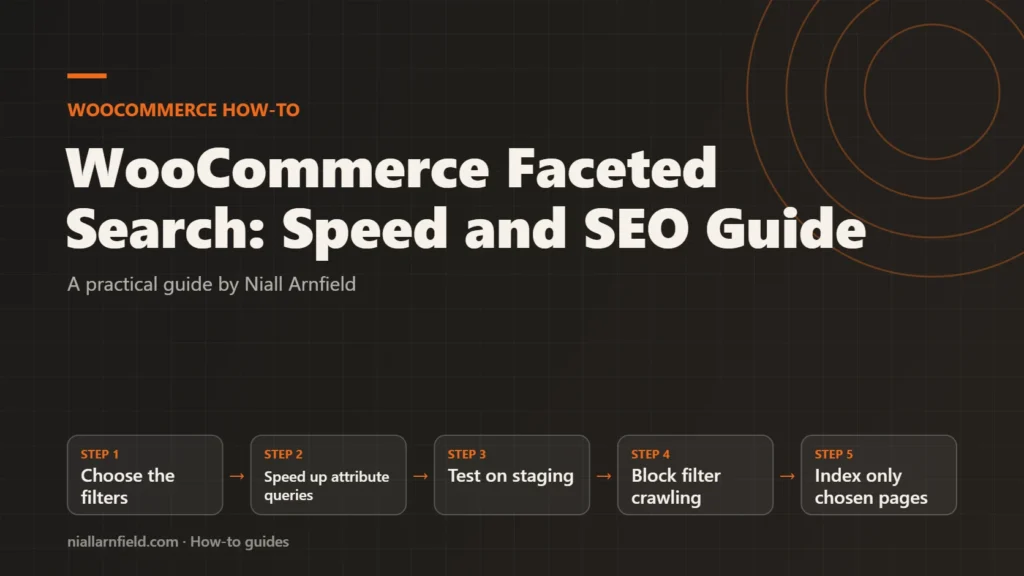
- Choose the filters
- Speed up attribute queries
- Test on staging
- Block filter crawling
- Index only chosen pages
What to decide before you start
Choose the filters before you choose the tools. Every extra filter adds a query, a block on the page and a potential URL pattern. Fewer, well-chosen filters are easier to keep fast and easier to manage for search.
- Which facets matter. Start with the two or three filters shoppers really use, such as size or material, and price.
- Which combinations deserve a page. Decide whether any filtered pages should appear in search results at all.
- How large the catalogue is. A catalogue of a few dozen products rarely needs a dedicated search service.
When I plan filters for a store, I write these choices down with the owner first. It stops the filter list growing every time someone has an idea.
Step by step
-
Choose your filter blocks
Current WooCommerce has a core Product Filters block. You add it to a template that already holds a Product Collection block, because the filters act on that collection. Inside it you add individual filters, such as Price, Rating, Attribute, Availability and Category. The WooCommerce documentation describes adding it to the Product Catalog template through the site editor. It needs a block theme, so check that first.
Older stores may still use the classic filter widgets. They work, but the block gives you one place to manage every filter.
-
Make attribute data fast to query
Filtering by attribute relies on the product attribute lookup table. Since WooCommerce 9.1, an optional optimised update method is available. Turn it on under WooCommerce, then Settings, then Product, then Advanced, where the option is labelled Optimized updates (see the developer announcement). Some extensions may not support it, so test your stack.
If filter results look wrong after a bulk import, rebuild the table with
wp wc palt regenerate. Runwp help wc paltfirst to check the options for your version. -
Limit the filters on each page
Show only the facets that have results on the current view. Hide empty filter values rather than offering options that lead nowhere. Keep the number of visible filters small on mobile, where a long panel adds scrolling and extra work for the browser.
-
Test speed on staging with real data
Copy the live catalogue to staging and time the category page with each filter applied. Use a profiler plugin such as Query Monitor to count database queries. Compare the results with the same page before you added filters. A slow filter is worth fixing before launch, not after.
-
Block crawling of filter parameters
Google’s faceted navigation guidance suggests blocking filtered URLs in robots.txt when you do not need them indexed. Unfiltered listing pages carry no parameter, so they stay crawlable. This example is a starting point. Check which parameters your filters really add, then replace the names below.
User-agent: *
Disallow: /*?*filter_
Disallow: /*?*min_price=
Disallow: /*?*max_price=
Do not add a noindex tag to pages that robots.txt blocks. Search engines cannot read a tag on a page they are not allowed to crawl.
-
Add canonicals and nofollow links
Where a filtered page is still crawlable, set its canonical tag to the unfiltered category. Google notes that canonical tags may reduce crawling only over time, so robots.txt is the more effective option. Use the ampersand as the parameter separator, because commas, semicolons and square brackets are harder for crawlers to recognise. You can also add rel=”nofollow” to filter links, but it only works if every link to that filtered URL carries it.
-
Return 404 for empty combinations
Combinations with no products, duplicate filters and nonsense URLs should return a 404 status. Do not redirect them to a generic page, because that sends mixed signals. Ask your developer to add this rule, then test a few impossible combinations with a status checker.
Decide which filtered pages deserve search traffic
Most filtered URLs should stay out of search. A few may be worth indexing, such as one material that people search for by name. Use keyword research to find them. Give each chosen page its own title, heading and a short paragraph of useful copy.
Avoid indexing thousands of near-duplicate pages. They dilute the strength of your main category pages and waste crawling. Review the search console report for filtered addresses every few months, and remove any that attract no real traffic.
When a search service helps
A dedicated search service or plugin helps when the catalogue is large, shoppers need typo tolerance, or filters slow the store despite tuning. Many of these services keep their own search index, which takes work off the main database. They add cost and another system to maintain, so compare them with the simpler fixes first.
If you are not sure which route fits, I can review your filters and crawl data. I offer this through my WooCommerce developer work. For the search side, see my WooCommerce SEO service and the technical SEO audit page.
Related how-to guides
- Shopify to WooCommerce Migration: Step-by-Step Guide: Moving from Shopify to WooCommerce means moving products, customers, orders and every old web address.
- How to Migrate WooCommerce to HPOS Safely: Older WooCommerce stores save orders in the WordPress posts tables, and that slows down large stores.
- WooCommerce Speed: Caching and Scripts Guide: WooCommerce cart, checkout and account pages cannot be cached like a blog post.
- WooCommerce Structured Data: Product Markup Guide: WooCommerce adds basic Product data to product pages by default, but Google merchant listings need more.
- Variable Products at Scale in WooCommerce Stores: A variable product with hundreds of combinations can make product pages slow and hard to manage.
- Embed a 3D Viewer in WordPress: Step by Step: WordPress refuses GLB files by default, and a 3D script adds weight to every page.
- Optimise glTF for the Web: A Step-by-Step Guide: A heavy 3D model slows every product page it appears on.
See all the Shopify, WooCommerce and 3D how-to guides.
Common questions
Should I noindex filtered WooCommerce pages?
Yes, unless a filtered page has search demand. Noindex keeps a page out of results, but the crawler must be able to read the page to see the tag. Choose one tool per URL pattern: robots.txt to save crawling, or noindex when the page must stay crawlable.
Does the attribute lookup table speed up filters?
It helps filtering by attribute, which is the main job of the table. The WooCommerce developer blog describes lookup tables as a way around slow queries on product metadata when filtering by variations. Test the effect on your own store, because results depend on catalogue size and hosting.
Is faceted search bad for SEO?
Not by itself. Problems arise when filtered URLs multiply and fill the crawl with near-duplicates. Limit which filters create crawlable URLs, block the rest, and index only a few filtered pages with unique content.