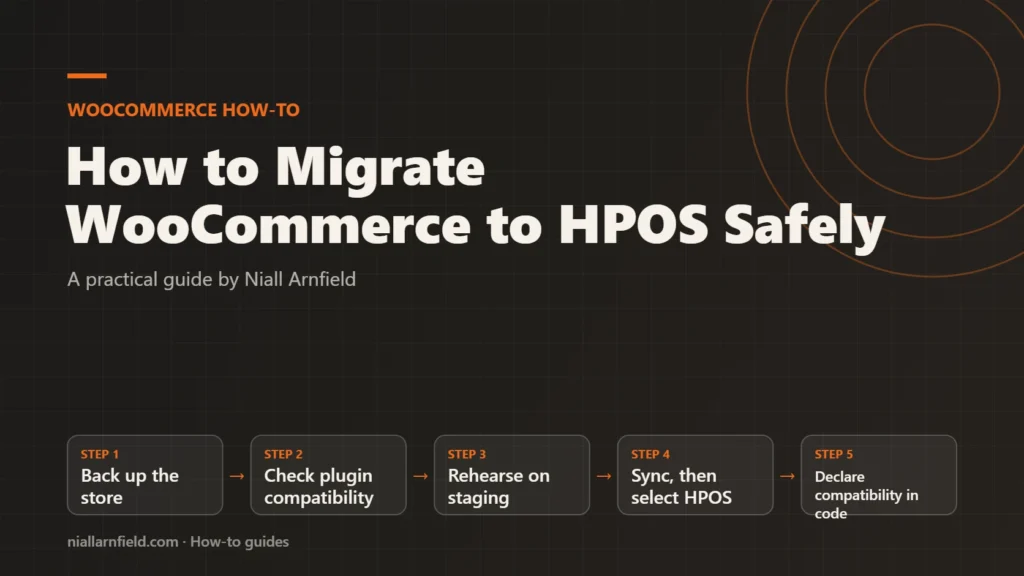
Older WooCommerce stores save orders in the WordPress posts tables, and that slows down large stores. High-Performance Order Storage (HPOS) moves orders into their own database tables, which are faster to query. This guide shows how to switch safely, check your plugins and declare compatibility in custom code.
Discuss your WooCommerce storeSee selected work
Why order data slows WooCommerce down
Older WooCommerce stores keep each order as a WordPress post, because that is how WordPress keeps almost everything. Order details therefore sit in the posts and postmeta tables, alongside products, pages and the rest of the site. As a store grows, order searches and reports get slower, and the admin order list usually feels it first.
HPOS gives orders their own database tables, such as wc_orders and wc_orders_meta, with your database prefix in front. WooCommerce then reads and writes orders in those tables directly. WooCommerce enables HPOS by default on new installs from version 8.2, but existing stores must opt in.
- Back up the store
- Check plugin compatibility
- Rehearse on staging
- Sync, then select HPOS
- Declare compatibility in code
Compatibility mode and the sync explained
The switch happens in two stages, and the first stage is compatibility mode. When you turn it on, WooCommerce keeps the posts tables and the new order tables in step, so new orders are copied into both places while it runs. WooCommerce’s own HPOS documentation covers the settings in full.
Existing orders are then copied across in the background, using scheduled actions that handle 25 orders at a time. A large store can take a long time to finish this backfill, so plan the timing with the store owner. Once both sides match, you select HPOS itself and the new tables become the source of truth.
Keep compatibility mode on for a while after the switch, because it gives you a safety net. If something breaks, you can return to the posts tables straight away. When I plan a migration, I write down the rollback route before anything else, so nobody has to invent it under pressure.
What to decide before you start
Four decisions shape the whole project, and each one is easier to make before anyone touches the live site. Agree them with the store owner and write the answers down in the project notes.
- A quiet window. Pick a period with low order volume, because orders placed during the sync need checking afterwards.
- Every extension that touches orders. Include payment gateways, shipping tools, accounting links and any custom code that reads order data.
- A staging copy. Rehearse the whole process on a copy of the live store before you change anything on the real site.
- A rollback plan. Know exactly how you will return to posts storage if the switch goes wrong.
Step by step
-
Take a full backup first
Back up the database and the WordPress files before you change any setting. Confirm that the backup restores on a separate test site, because an untested backup is only a hope. Storage changes can be reversed, but a backup also protects you from unrelated faults.
-
Check plugin compatibility
Go to WooCommerce, then Settings, then Advanced, then Features. WooCommerce flags extensions that are incompatible with HPOS on that screen. Ask each developer for HPOS support before you go further.
Keep order-related extensions active during the switch, because deactivating them first can cause data discrepancies. If you have already deactivated one, switch back to posts storage, let the sync finish, then try again.
-
Rehearse the switch on staging
Copy the live store to a staging site and run every step there, in the same order you will use live. Place test orders, refund one, change a status and send the customer emails. Then check that the order list, reports and exports all look right before you move on.
-
Turn on compatibility mode
On the same Features screen, tick Enable compatibility mode (synchronizes orders to the posts table) and save the change. WooCommerce now keeps both storage locations in step, so the live store behaves as it did before.
-
Let the background sync finish
WooCommerce checks for orders that need copying with the action
wc_schedule_pending_batch_process. Each run ofwc_run_batch_processcopies 25 orders. You can watch progress under WooCommerce, then Status, then Scheduled Actions, and click Run to speed up a batch if the store needs it. -
Select HPOS and test an order
When both sides match, select High-Performance Order Storage on the Features screen and keep compatibility mode ticked for now. Place a test order and confirm it appears in the order list. Then open it, refund it and check that the customer email arrives.
-
Declare compatibility in custom plugins
If you wrote a plugin for the site, declare HPOS support in its main file. This snippet is a starting point rather than a finished solution. Use
falseinstead oftrueif your code does not support HPOS yet.add_action( 'before_woocommerce_init', function() { if ( class_exists( \Automattic\WooCommerce\Utilities\FeaturesUtil::class ) ) { \Automattic\WooCommerce\Utilities\FeaturesUtil::declare_compatibility( 'custom_order_tables', __FILE__, true ); } } );Then replace direct post calls, such as
get_post(), withwc_get_order(). Use the order object’s own methods to read and save meta data, rather than writing to the posts tables by hand.
Check that the migration worked
Compare order counts and totals for a set date range before and after the switch. Export the same range from both sides and compare the files line by line. Then open a sample of orders and check the addresses, refunds and internal notes.
Test every integration that receives orders, such as accounting or fulfilment tools. Place one order through each payment method you accept, and keep a short log of what you checked. That log gives the store owner clear evidence that the store works.
Common mistakes and when to get help
The most common error is reading orders with old post functions. Code that reads or writes orders through post functions or direct database queries can break once HPOS is the source of truth. Move that code to the order objects before the switch, not after it.
Get help if an extension blocks the switch and its developer has gone quiet. A specialist can audit the code and patch it safely. This is the kind of work I cover in my WooCommerce developer service. For wider site performance, see my WooCommerce SEO and WordPress speed optimisation work.
Related how-to guides
- WooCommerce Faceted Search: Speed and SEO Guide: Faceted search lets shoppers narrow products by size, colour, price and more.
- Shopify to WooCommerce Migration: Step-by-Step Guide: Moving from Shopify to WooCommerce means moving products, customers, orders and every old web address.
- WooCommerce Speed: Caching and Scripts Guide: WooCommerce cart, checkout and account pages cannot be cached like a blog post.
- WooCommerce Structured Data: Product Markup Guide: WooCommerce adds basic Product data to product pages by default, but Google merchant listings need more.
- Variable Products at Scale in WooCommerce Stores: A variable product with hundreds of combinations can make product pages slow and hard to manage.
- Compress Textures with KTX2 for 3D Models: Large texture images make 3D models slow and heavy in graphics memory.
- Embed a 3D Viewer in WordPress: Step by Step: WordPress refuses GLB files by default, and a 3D script adds weight to every page.
See all the Shopify, WooCommerce and 3D how-to guides.
Common questions
Do I need HPOS to run WooCommerce?
Not strictly. WooCommerce still supports the posts tables, so a store can keep running without the switch. HPOS is the default on new installs, and it suits stores with heavy order activity. Check the current guidance on woocommerce.com before you decide, and test the switch on staging first.
Will I lose orders during the switch?
A careful process should not lose orders. Take a full backup, keep compatibility mode on, and rehearse the whole switch on staging. Large stores need a longer sync period, so check any orders placed while the sync runs.
Can I switch back if something goes wrong?
Yes. The WooCommerce documentation says you can return to the posts tables straight away while compatibility mode stays on. Test that rollback on staging before you need it in a real emergency, when stress makes mistakes more likely.