Shopify filters can create many near-duplicate URLs, and search engines waste time crawling them. The fix is to decide which filtered pages deserve a search listing, then block the rest with robots.txt.liquid and correct canonical tags.
Discuss your Shopify SEOSee selected work
Why filter URLs cause problems
When a shopper picks a colour and a size, Shopify adds parameters to the web address. For example, a URL can end with ?filter.v.option.colour=Blue. The exact names depend on the filters your theme and apps provide. Each combination creates another address for a crawler to visit, and many of those addresses show the same products in a different order.
Search engines give each site a limited amount of crawling time, and that time is not unlimited. Google’s guidance on faceted navigation warns that filter combinations can create very large numbers of URLs. Crawlers then have less time left for new, useful pages, so new products can take longer to be found. When I audit a store, I check the server logs and the Page indexing report in Search Console for this pattern, because the numbers show the scale of the problem quickly.
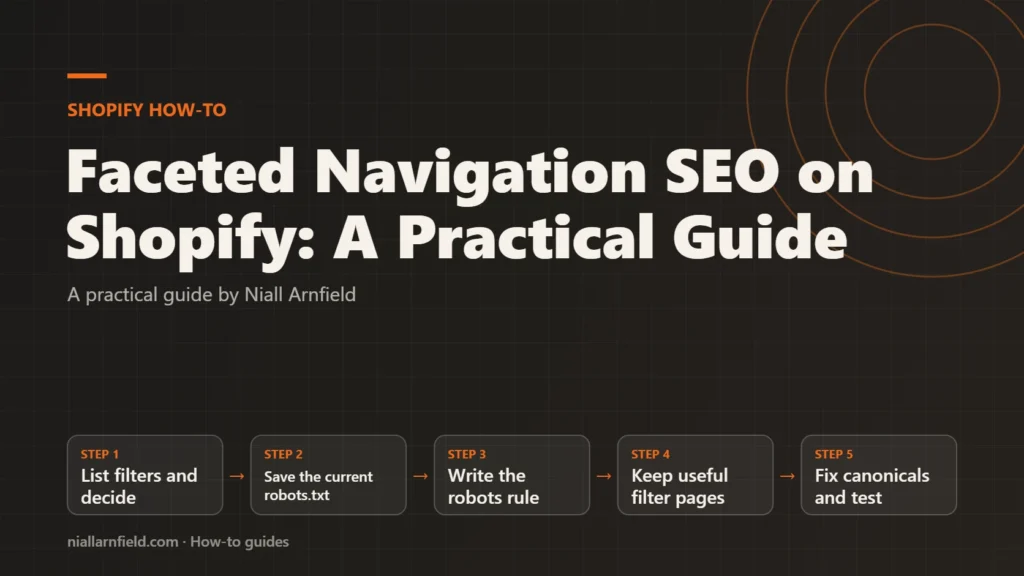
- List filters and decide
- Save the current robots.txt
- Write the robots rule
- Keep useful filter pages
- Fix canonicals and test
Decide what to keep before you start
Decide filter by filter, not for the whole store. A single rule for every filter usually removes pages that could earn search traffic, or keeps pages that only add noise. Three options cover most cases.
- Block: stop crawling with robots.txt. This suits sorting options and narrow filters that match no real search, such as a price band.
- Keep: give a filter its own collection page. This suits filters that match real searches, such as a material or room type, and it works best when the collection has its own copy.
- Canonicalise: point filtered URLs at the main collection. This is a weaker signal that works slowly, so I use it alongside blocking rather than instead of it.
Google’s guidance favours allowing product pages and one main listing page. Blocking filtered variants is the usual choice when you don’t need them in Search. Whatever you decide, write the list down before you touch any code, so the rules and the filters stay in step.
Which filtered pages deserve their own collection
A filter earns its own collection when shoppers search for that exact combination and you can write useful copy for it. Search Console shows the queries that bring people to your site. If a query such as black leather sofa already brings impressions, that is a signal worth testing. On-site search logs and your analytics add more evidence about what shoppers actually type.
Be strict about the number. A collection for every filter combination recreates the thin pages you were trying to avoid. Start with a small set of collections that match real demand, give each one unique copy, and review the results over several weeks. For example, five well-chosen collections will usually do more than fifty automatic ones.
Step by step
-
List every filter parameter
Open a filtered collection on your store and apply one filter. Note the parameter that appears in the address. Repeat this for each filter type, including sorting and price ranges. Then check your analytics and Search Console for searches that match each filter. Mark every filter as block, keep or review, and keep the list open for the next steps.
-
Save your current robots.txt
Open
/robots.txton your store domain in a browser and save a copy. Shopify generates this file by default, and it contains rules you may want to keep. Once you add a custom template, you need the original to compare against, line by line. -
Create robots.txt.liquid in the theme
In the theme code editor, right-click the Templates folder, choose New file and name it
robots.txt.liquid. The new file replaces Shopify’s generated robots.txt, so any default rule you still need must appear in your version. Shopify’s robots.txt documentation explains which objects the template supports, and it recommends editing the default groups rather than writing plain text. -
Add a rule for filtered URLs
Loop over the default rule groups and add your rule to the wildcard group, which applies to all crawlers. Use this snippet, adapted from Shopify’s own example, as a starting point, and adjust the pattern to match the filter parameters you marked as block:
{% for group in robots.default_groups %}
  {{- group.user_agent }}
  {%- for rule in group.rules -%}
    {{ rule }}
  {%- endfor -%}
  {%- if group.user_agent.value == '*' -%}
    {{ 'Disallow: /*?*filter.' }}
  {%- endif -%}
  {%- if group.sitemap != blank -%}
    {{ group.sitemap }}
  {%- endif -%}
{% endfor %}
The pattern
/*?*filter.matches any URL whose query string containsfilter.. Whitespace matters in robots.txt, so compare the rendered output with your saved copy line by line before you publish. -
Keep the filters that earn a page
For each filter marked keep, create a collection with a clear title, an original description and links from your menus or collection copy. A dedicated collection has a normal address, so the rule above does not block it. Check that it appears in your sitemap, and keep each page focused on one search. Internal links matter here, so link to these collections from the relevant ecommerce SEO content on your site.
-
Check the canonical tag on filtered pages
Open a filtered collection, view its source and search for
rel="canonical". The link should point to the main collection address, without the filter parameters. If it points at the filtered URL, fix the canonical in your theme’s head section. Google cannot read the canonical on a URL that robots.txt blocks, so this check matters most for filtered pages you allow. Google treats canonical tags as a hint rather than a command. -
Test the live file and key pages
Visit your robots.txt in a browser and confirm the rules match your plan. In Search Console, check the robots.txt report for errors. Then run URL Inspection on one filtered page and one kept collection. The filtered page should show as blocked by robots.txt, and the kept collection should be allowed to crawl.
Check that it worked
Recheck robots.txt after every theme change, because a later edit to the template can quietly drop a rule. Review crawl stats and the Page indexing report over several weeks, not days. Look for fewer filtered URLs in the crawl and more activity on products and kept collections. Compare the same periods before and after, so seasonal changes do not mislead you.
Common mistakes and when to get help
- Blocking product or collection pages with a pattern that is too broad.
- Blocking the CSS or JavaScript that a page needs to render.
- Expecting robots.txt to remove pages from results. A blocked URL can still appear if other sites link to it.
- Listing every filter combination in your sitemap.
If your catalogue is large, a technical review is worth the time. The Shopify SEO agency page explains how I approach this work. The Shopify SEO audit guide shows how I find these problems first, and the technical SEO audit page covers the wider crawl checks.
Related how-to guides
- Shopify App Bloat Audit: Find and Remove Leftovers: Uninstalled apps can leave scripts, snippets and embeds behind, and these slow your store.
- Canonical Tags on Shopify Collection Product URLs: Shopify products can be reached through a collection URL, which creates a second address for the same content.
- Shopify Image Optimisation with image_url and image_tag: Large product photos slow Shopify stores, especially on phones.
- Shopify Markets and Hreflang: A Practical Guide: Shopify Markets can give each country or language its own URL.
- Product Option Apps vs a Custom Build on Shopify: Shopify apps can add product options quickly, but a custom build gives you full control over data and cost.
- WooCommerce Structured Data: Product Markup Guide: WooCommerce adds basic Product data to product pages by default, but Google merchant listings need more.
- Variable Products at Scale in WooCommerce Stores: A variable product with hundreds of combinations can make product pages slow and hard to manage.
See all the Shopify, WooCommerce and 3D how-to guides.
Common questions
Should I block every filtered URL on Shopify?
No. Block filters that only sort or narrow products. Keep filters that match real searches, such as a material or a room type, and give them a dedicated collection. Decide filter by filter, using search data rather than a blanket rule.
Does robots.txt remove filtered pages from Google?
Not directly. Robots.txt stops crawling, but a blocked URL can still appear in results if other sites link to it. Use it to save crawl time, and use clear internal links and dedicated collections to show which pages matter.
Do I need a developer for this?
Usually, yes. The robots.txt.liquid file and canonical fixes need access to theme code. The filter decisions need SEO judgement and search data. I would plan both together, so the robots rules match the filters you keep.