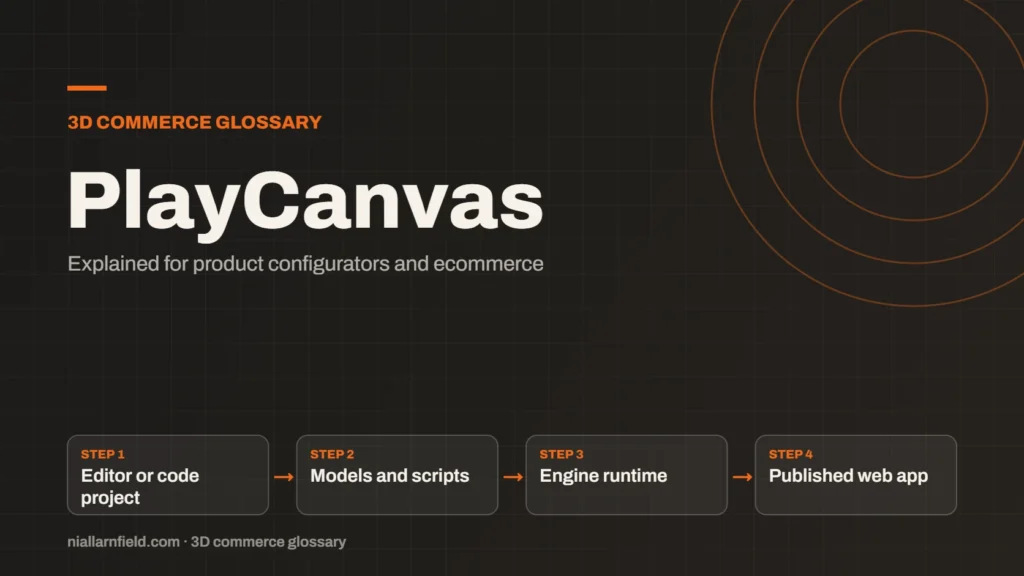
PlayCanvas is an open-source 3D engine written in JavaScript, with its own visual editor. It runs in the browser and is published on npm, so developers can use it with or without the editor.
Discuss your product rangeTry the demos
What PlayCanvas is
PlayCanvas is a 3D engine for the web. Its runtime is the part that runs in the browser and powers the apps you build. The engine is released under the MIT licence, and its source code is on GitHub. You can install it from npm, or build your project in the PlayCanvas editor. The engine documentation explains both routes.
The engine is written in JavaScript and ships with TypeScript declarations. That suits teams that already use modern JavaScript. As an engine, it includes a scene graph, asset handling and a rendering pipeline. The scene graph is the tree of objects that makes up a 3D scene. That keeps the stack consistent for a team that already works in JavaScript.
The engine also handles assets beyond models, including textures, audio and scripts. Each asset lives in the project and loads when a scene needs it. Teams can split the work, so one person owns the models and another owns the scripts.
- Editor or code project
- Models and scripts
- Engine runtime
- Published web app
Editor or code: two ways to work
With the editor, a designer can place models, set up lights and attach scripts without much code. The result is a project you can publish. Designers gain speed, and developers keep control of the code that matters. With the standalone engine, a developer writes the whole app in code and loads the engine as a library.
The editor suits teams that want a visual workflow. The standalone route suits teams that already have a web stack and want the engine as one part of it. Both routes use the same engine underneath, so skills carry across.
In the editor, the viewport shows the scene while you work. You can select objects, edit their properties and preview the project. That tight loop shows a designer the effect of each change straight away. The developer then works from the same project.
Why PlayCanvas can suit configurators
A configurator often needs a clear scene, a few options and fast loading. PlayCanvas fits when a team wants editor tools for scene setup and a developer who can script the logic. The PlayCanvas salon backwash demo on this site offers basin, upholstery and base options, so you can see the approach in action.
Model preparation still matters. Export clean glTF or GLB files, check the scale and set up materials once. For the wider picture, compare the three engines on my engine comparison page.
For the wider approach to viewers in a shop, see my product configurator service. PlayCanvas also suits a viewer that sits inside a larger flow, such as a quote form or a basket. Plan the hand-off between the viewer and the shop early. A quote form or basket can then stay in the normal site code, with clear handoff points.

Practical advice for PlayCanvas projects
Agree on the split between editor work and code early. If a designer changes scenes in the editor, the developer should know which parts are safe to change. Keep script names and entity names consistent, so both people can find things quickly. Write the split down in the project notes, so new team members can follow it. Clear ownership of each scene avoids two people changing the same thing at once, which is a common source of lost work.
- Use the editor for layout and scene setup where it helps.
- Keep custom scripts small, with one job each.
- Check the graphics notes before you rely on WebGPU, since the engine’s docs label it as beta.
- Test loading on mobile connections, not only on office Wi-Fi.
Set up version control for the project early, so changes from the editor and from code can be reviewed. Agree who merges changes and how conflicts get resolved. A small team can manage this with a simple weekly check.
Common mistakes and limits
A common mistake is building a whole shop in the editor, then struggling to connect it to real product data. Plan the data path early. Decide how options from your store will reach the scene, and who owns that connection. A short written agreement between the shop team and the 3D team makes that ownership clear from the start.
The engine can fall back from WebGPU to WebGL, depending on browser support. Do not assume one route. Test both, and check that your scripts behave the same on each.
Performance needs attention from the start. A scene that loads quickly on a desktop can still stall on a phone. Set a budget for file size, draw calls and texture sizes. Check that budget at each milestone, not only at launch.
Related terms
- WebGL: WebGL is a web standard that lets a browser draw 3D graphics on a canvas, using the device's graphics chip.
- WebGPU: WebGPU is the newer web standard for using a device's graphics processor from a browser.
- Three.js: Three.js is a JavaScript library that makes 3D graphics on the web easier to build.
- Babylon.js: Babylon.js is a JavaScript engine for building 3D experiences in the browser.
- Line-item properties: Line-item properties are custom key and value pairs attached to one item in a Shopify cart or order.
- Product variants: Product variants are versions of one product, such as a size or a colour.
- Parametric models: A parametric model is a 3D model defined by dimensions and rules rather than fixed geometry.
- 3D asset pipeline: A 3D asset pipeline is the set of steps that turns source files into models a web viewer can load.
- Digital twin: In a product configurator, a digital twin usually means a 3D model that matches a real product's shape, materials and options.
- Configurator embed: A configurator embed is how a 3D configurator appears inside another website.
Browse all the definitions in the 3D commerce glossary.
Common questions
Is PlayCanvas free to use?
The engine is open source under the MIT licence, so you can use its code in your project. Check the PlayCanvas site for the editor’s own terms before you start a commercial project, because hosting and editor plans can differ.
Is PlayCanvas only for games?
No. The name suggests games, and many games use the engine. It also builds product viewers and interactive pages. The key question is whether its editor and runtime suit your scene. Look at the demos before you decide.
Can PlayCanvas run without its editor?
Yes. The engine can be used standalone, as a library in your own web app. Install it from npm, then create the scene in code. Editor projects are optional, so a developer-only team can use the engine directly.