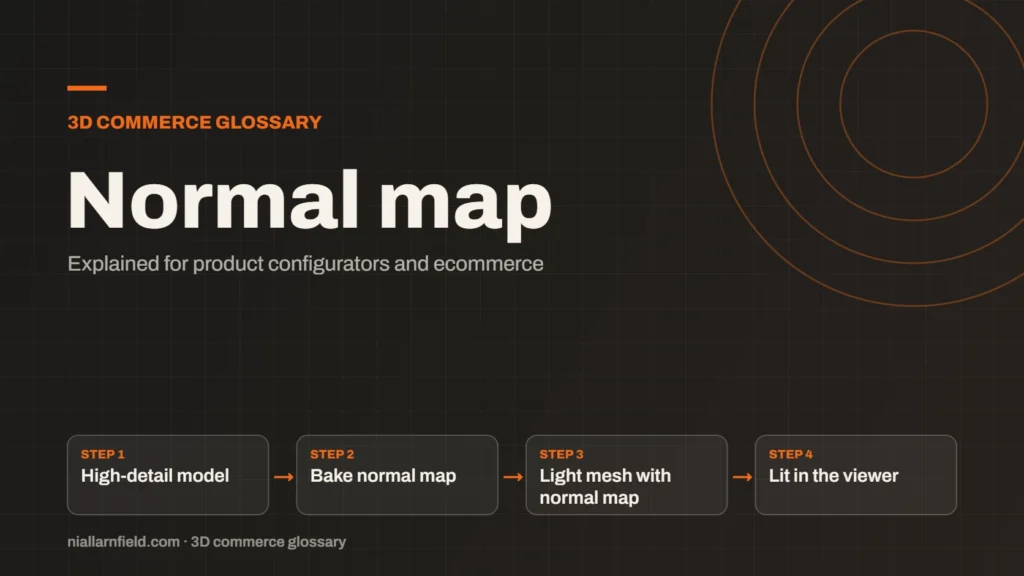
A normal map is an image that fakes fine surface detail, such as grooves and small bumps, by changing how light hits a surface. The mesh stays simple, so the viewer can draw it quickly.
Discuss your product rangeTry the demos
What a normal map is
A normal is an arrow that points straight out from a surface, at right angles to it. A normal map is a texture that stores one of these arrows for every pixel. The lighting engine reads each arrow and shades that spot as if the surface tilted in that direction.
The glTF 2.0 specification calls these tangent-space normals, which is a technical way of saying each direction is measured relative to the surface itself. The same map keeps working when the whole object turns, because its directions move with the surface. The colours you see in the file are direction data, not paint.
Normal maps are one of several standard maps in physically based rendering (PBR), a way of describing materials by how they reflect light. My PBR guide covers the others in more detail. Most normal maps look mostly blue and purple, because a flat patch facing the camera stores a neutral blue value.
- High-detail model
- Bake normal map
- Light mesh with normal map
- Lit in the viewer
How a normal map is made
Most normal maps start from a high-detail model that an artist has sculpted or scanned. That source mesh holds the fine detail in very high numbers of polygons. A baking tool then records how that dense surface differs from a simpler version, and saves the result as an image.
When I prepare a model for a configurator, I bake the normal map onto a lighter mesh. The light mesh keeps the outline and the large shapes, while the map supplies the small detail such as stitching, grain or chamfered edges. This split is the core of the method, and I cover the wider process in my guide to 3D models for product configurators.
I then light the result from several angles to check the bake. Dark patches or odd streaks usually mean the source and target meshes did not line up properly. I fix that first, because a bad bake looks worse than no detail at all.
Why configurators need normal maps
A configurator swaps parts and finishes as the shopper clicks through the options. Heavy geometry slows down every one of those changes, especially on a phone with a weak connection. A normal map keeps the mesh light while the surface still looks finished. The shopper gets a faster page and a clearer view of the product.
Realism affects buying decisions in a way that numbers alone cannot show. A woven fabric or a brushed steel handle looks flat without surface detail, even when the colour is right. A normal map adds that texture for a small cost in file size, which suits product pages well. The detail helps a shopper judge the finish before they buy.
- Lighter meshes load faster, which matters most on phones and mobile networks.
- Fine detail survives at a low polygon count, so the model stays responsive while it turns.
- One map can serve every option that shares the same surface, which saves a great deal of repeated work.
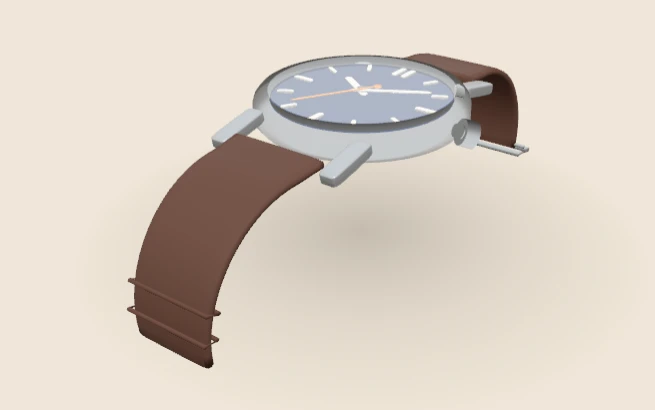
The WebGPU watch on my demos page lets you choose the case metal, strap and case size, which shows how a product changes with its options. My product configurator service covers how I plan and build that kind of choice.
Common mistakes with normal maps
Most problems come from a few simple errors that are easy to avoid once you know them. The first is loading the map as colour data. A normal map stores direction, not colour, so it must be loaded as non-colour data. three.js documents this clearly, and getting it wrong distorts the lighting across the whole surface.
- Mixing up conventions. Some tools export the green channel the other way round, which makes bumps look like dents.
- Expecting the outline to change. A normal map changes lighting only, so the silhouette stays as flat as the light mesh underneath.
- Using it on a shape that needs real geometry. Deep grooves and visible edges need the mesh itself to look right.
Check the export carefully before you sign it off. three.js also notes that a normal map authored in the left-handed convention needs the y part of normalScale negated. A map that looks right in one viewer can look wrong in another, so I test every export in the target viewer.
Limits of a normal map
A normal map is a convincing trick, but it is still a trick. Viewed edge-on, the light mesh gives the game away, because the outline never changes. Shadows cast by the bumps are missing too, since the surface is still smooth underneath the lighting.
Fine patterns can also shimmer at a distance if texture filtering is poor. I check each model at the closest camera distance a shopper can reach. If the detail breaks at that distance, I add geometry or change the scale of the map.
Related terms
- Roughness map: A roughness map is a texture that sets how blurry or sharp a surface's reflections look.
- Metalness: Metalness is a physically based rendering (PBR) value that says how much a surface behaves like metal.
- Ambient occlusion: Ambient occlusion is a shading effect that darkens creases, corners and contact points where light struggles to reach.
- UV mapping: UV mapping is the process of unwrapping a 3D model's surface onto a flat 2D plane.
- React Three Fiber: React Three Fiber is a React renderer for Three.js.
- model-viewer: model-viewer is Google's open-source web component for showing 3D models on a web page.
- Texture atlas: A texture atlas is one image that holds several smaller textures.
- Level of detail (LOD): Level of detail, or LOD, means keeping several versions of the same model at different polygon counts.
- Draw calls: A draw call is a request from the CPU to the GPU to draw one mesh with one material.
- Instancing: GPU instancing draws many copies of one mesh in a single draw call.
Browse all the definitions in the 3D commerce glossary.
Common questions
What is a normal map in simple terms?
A normal map is an image that tells the lighting engine which way each small patch of a surface faces. The engine uses that information to show bumps and grooves without adding extra geometry. The shape and outline of the model stay exactly the same.
Does a normal map make a 3D model look more detailed?
Yes, at normal viewing distances, because the lighting picks up the fake bumps and the surface looks richer. Up close, or when viewed from the edge, the trick shows. Use normal maps for fine detail and real geometry for large forms.
How is a normal map different from a height map?
A height map stores how high each point sits above a base surface. A normal map stores the direction each point faces instead. The lighting step can use that direction directly, which is why normal maps are common in real-time 3D work.