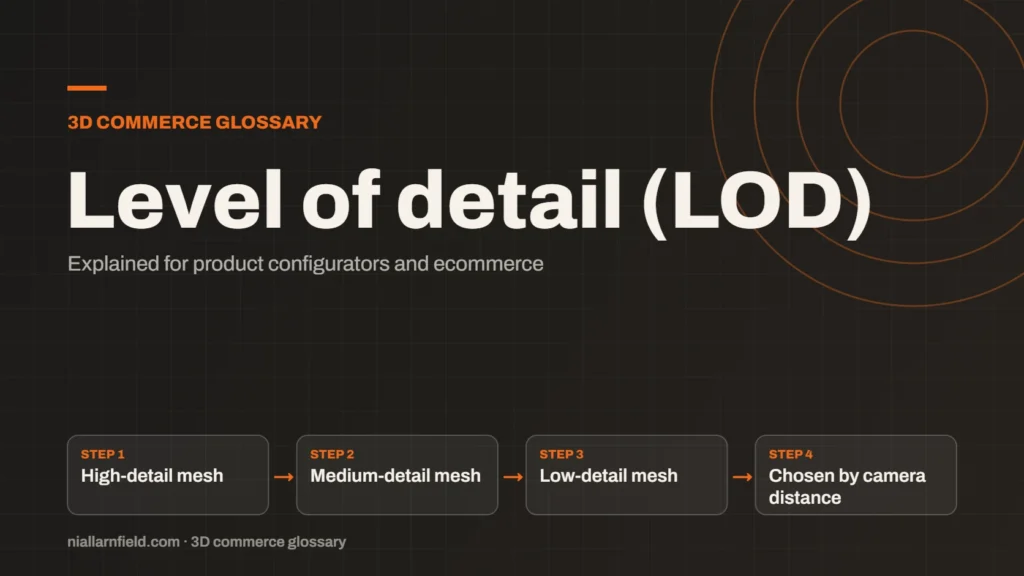
Level of detail, or LOD, means keeping several versions of the same model at different polygon counts. The renderer swaps between them according to how far the camera is from the object. Distant parts use lighter versions, so the whole scene stays fast.
Discuss your product rangeTry the demos
What level of detail means
A 3D model has a fixed amount of geometry, measured in triangles or polygons. For example, a detailed desk lamp might hold tens of thousands of triangles. Much of that detail is wasted when the lamp fills only a small part of the screen, because the viewer cannot resolve it anyway. Level of detail tackles that waste directly, and it does so without changing how the product looks up close.
The idea is simple to state. You prepare two or three versions of each part, and each version keeps a different amount of detail. A high version is used when the camera is close, a medium one at mid range and a low one far away. The renderer picks the right version for each frame. The shopper rarely notices the swap, provided the switch points are well chosen and the silhouette stays close to the original.
- High-detail mesh
- Medium-detail mesh
- Low-detail mesh
- Chosen by camera distance
How the renderer chooses a level
In three.js, the THREE.LOD object holds a list of levels, and each level pairs an object with a distance. The three.js LOD documentation explains that each level is added with a distance, and that the object works out which level to show from the camera’s distance. By default, the renderer updates it on every frame, so you rarely need to call the update yourself.
A hysteresis value helps stop flicker along the switch points. When the camera hovers near a boundary, the model would otherwise swap back and forth on every single frame, which looks worse than either version alone. The documentation defines the hysteresis threshold as a fraction of distance, so it scales with the level it applies to.
- Tie the switch distances to the camera’s real zoom range, not to guesswork.
- Keep the same materials and UV layout where possible, so swaps look consistent.
- Check the silhouette at each switch point, not only in the final frame.
Why it matters for product configurators
A configurator is a viewer that people spend real time inside. They orbit, zoom and inspect each part before they decide. The close view has to look right, because that is where the shopper checks quality. The far view, meanwhile, can stay light. LOD gives you both, without asking the shopper to accept a blurry model.
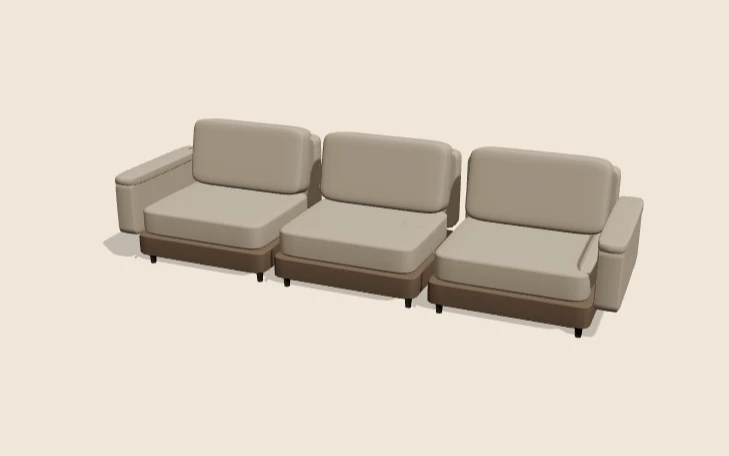
For example, a sofa with twelve separate cushions may only need full detail when the shopper zooms in on a seam. From across the room, a simpler cushion shape costs far less work for the GPU. The same logic applies to a watch strap, a set of lamp shades or a row of handles on a kitchen unit.
LOD also protects the phone experience. Phones have less GPU power than laptops, and a scene that runs well on a laptop may stutter on a mid-range handset. Lower levels for distant parts help close that gap, which matters because many shoppers browse on their phones.
How I prepare LOD levels for a configurator
I begin with the camera rather than the mesh. I set the closest and furthest distances the shopper can reach with the controls, then work out where each part is actually visible. A small accessory might need only two levels. A main body panel often needs three, because it fills more of the frame.
I make each lower level by reducing the existing mesh, not by rebuilding it from scratch. That keeps the proportions and the UVs consistent across levels. I then check each level in the free GLB viewer, which opens the file locally in the browser. I look for holes, missing edges and shading that changes between levels.
Every extra level is another file to store and another file to download. When I prepare a model, I weigh that cost against the speed gain before I commit. My guide to 3D models for product configurators covers the wider export steps that keep those files compact, and my product configurator service applies the same thinking to whole projects.
Common mistakes and limits
- Switch distances set by guesswork, which shows visible pop-in as the camera moves.
- Lower levels with different proportions, so a part looks changed after a swap.
- LOD applied to tiny parts, where the saving is too small to notice.
- Extra levels that double the download without a matching speed gain.
LOD is a trade-off. It saves work at a distance, but it adds files and extra checking to the build process. Measure the frame time with a real configuration on a real phone, before and after the change. Keep the change only if the gain is clear and the product still looks right.
LOD does not replace good modelling. A clean, sensible base mesh is still the starting point for every level. Lower levels built from a messy model inherit its problems, and they often make those problems harder to find.
Related terms
- Texture atlas: A texture atlas is one image that holds several smaller textures.
- Draw calls: A draw call is a request from the CPU to the GPU to draw one mesh with one material.
- Instancing: GPU instancing draws many copies of one mesh in a single draw call.
- Line-item properties: Line-item properties are custom key and value pairs attached to one item in a Shopify cart or order.
- Product variants: Product variants are versions of one product, such as a size or a colour.
- Parametric models: A parametric model is a 3D model defined by dimensions and rules rather than fixed geometry.
- 3D asset pipeline: A 3D asset pipeline is the set of steps that turns source files into models a web viewer can load.
- Digital twin: In a product configurator, a digital twin usually means a 3D model that matches a real product's shape, materials and options.
- Configurator embed: A configurator embed is how a 3D configurator appears inside another website.
- Material swatch: A material swatch is a sample of a finish, such as fabric, leather or metal, shown as a choice in a configurator.
Browse all the definitions in the 3D commerce glossary.
Common questions
What is the difference between LOD and compression?
They solve different problems. LOD changes how much geometry the renderer draws, depending on how far away an object sits. Compression shrinks the file that the shopper downloads. A configurator can use both, and the two work well together on the same project.
How many LOD levels does a configurator need?
Two or three is a common choice, though there is no fixed rule. For example, a high level for close inspection, a medium one for mid range and a low one for the far view. More levels rarely help, and each one adds work to every export and every upload.
Does LOD change the colours or textures?
Not by itself. LOD only swaps geometry. Each level can still reuse the same materials and textures, which keeps the look consistent and avoids extra downloads. Check that the UV coordinates still line up correctly at every level.