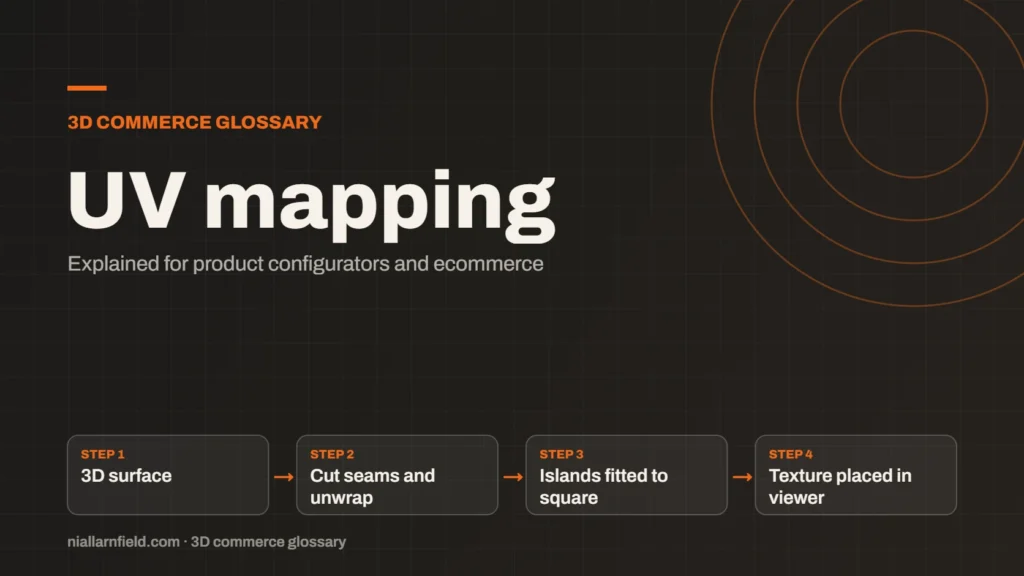
UV mapping is the process of unwrapping a 3D model’s surface onto a flat 2D plane. Each vertex gets a pair of coordinates, called U and V, that tell the renderer where to place each texture pixel.
Discuss your product rangeTry the demos
What UV coordinates are
A 3D model has x, y and z positions in space. A texture is a flat image with its own width and height. UV coordinates are the bridge between the two. U runs across the image, and V runs along its height, usually from 0 to 1.
The glTF 2.0 specification stores these as TEXCOORD_0, with later sets named TEXCOORD_1 and so on. The indices must start at 0 and run in order. Each value is a two-part vector stored for every vertex in the mesh.
UV data travels inside the file with the geometry, as I explain in my GLB file guide. A model without UV data cannot show an image texture at all, however good the image is.
- 3D surface
- Cut seams and unwrap
- Islands fitted to square
- Texture placed in viewer
How a model gets unwrapped
Unwrapping cuts the surface into pieces, called islands, and lays them flat. The artist then packs those islands into the 0 to 1 square. The cut lines are called seams, and texture detail can look broken along a seam if it falls in the wrong place. A good layout also keeps the texture sharp where the shopper looks most.
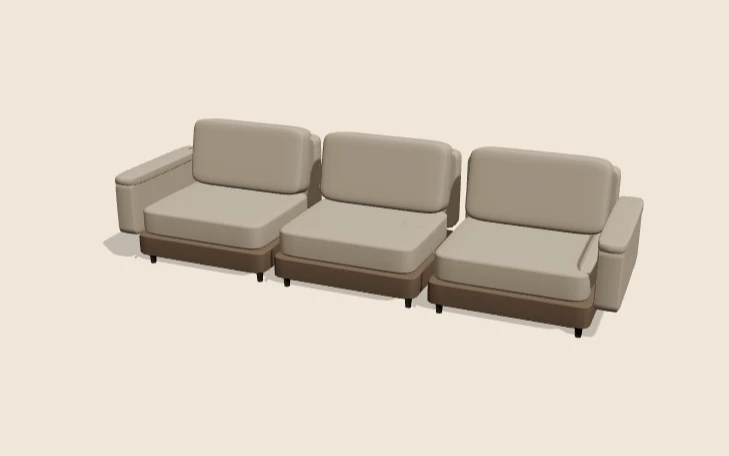
When I prepare a model, I hide seams where the shopper will not look closely. The underside of a sofa or the back of a lamp base are good examples. A seam in those places costs nothing visible, while a seam across the front of a handle is hard to hide.
I then check the layout so islands do not overlap. Overlapping pieces share the same texture space, so one part paints over another. A small gap between islands also stops colours bleeding across edges when the texture is filtered.
Why UV layout matters for configurators
Configurators often swap textures onto the same model. A fabric, a leather or a finish is a new image on the same UV layout. A clean layout means each option lands in the right place every time, without rework.
Texel density is the other concern. It measures how many texture pixels cover a unit of surface. If parts get very different densities, one part looks blurry while another looks sharp. I keep density even across parts that a shopper can compare side by side.
- Keep seams hidden from normal viewing angles wherever the design allows.
- Give similar parts a similar texel density, so they look equally sharp.
- Leave a small gap between islands so colours do not bleed.
This matters in any product configurator that swaps textures. A layout that works for one colour should work for all of them, and that is the test I apply before a model goes live. The same preparation steps are covered in my guide to 3D models for product configurators.
Common UV mapping mistakes
The most common error is a missing UV set. A model with no coordinates cannot show a texture, and the image simply does not appear. Export settings are a frequent cause of this, so check them early. Missing sets often appear after a re-export, so compare the new file with the original.
- Stretched islands. Stretching shows as smeared patterns on fabric or wood grain, which looks cheap.
- Flipped islands. A mirrored island can show reversed text or grain, which a shopper will spot quickly.
- A second UV set left out. Some maps, such as a lightmap, often use their own UV set, and a missing set leaves them without correct coordinates.
Test the model in the viewer the shopper will use. Export tools sometimes rename or drop UV sets, and a test render shows this within seconds. I would rather catch the problem on my own machine than on a live product page.
Limits of UV mapping
Some shapes do not unwrap cleanly. Spheres and organic forms can create heavy distortion or many seams. For those shapes, a procedural or projected texture may suit better than a hand-made layout.
A layout also depends on the real product size. A layout built for one size may not suit another, because the proportions change how the texture falls. When the proportions change, I rebuild the layout rather than stretch the old one.
Remember that UVs are fixed to the mesh. Once a part changes shape, its layout may need work too. Plan the layout as part of the model, not as a final step before publishing.
Related terms
- Normal map: A normal map is an image that fakes fine surface detail, such as grooves and small bumps, by changing how light hits a surface.
- Roughness map: A roughness map is a texture that sets how blurry or sharp a surface's reflections look.
- Metalness: Metalness is a physically based rendering (PBR) value that says how much a surface behaves like metal.
- Ambient occlusion: Ambient occlusion is a shading effect that darkens creases, corners and contact points where light struggles to reach.
- HDRI lighting: HDRI lighting uses a high dynamic range image of an environment to light a 3D scene.
- Scene Viewer: Scene Viewer is Google's viewer for 3D and augmented reality (AR) models on Android.
- WebXR: WebXR is a web standard for augmented reality (AR) and virtual reality (VR) in the browser, published by the W3C.
- React Three Fiber: React Three Fiber is a React renderer for Three.js.
- model-viewer: model-viewer is Google's open-source web component for showing 3D models on a web page.
- Texture atlas: A texture atlas is one image that holds several smaller textures.
Browse all the definitions in the 3D commerce glossary.
Common questions
What does UV mapping mean?
UV mapping flattens a 3D surface into 2D so that a texture can be placed on it. The letters U and V name the two axes of the flat image. Each point on the model gets a pair of values that point into that image, which is how the texture lands correctly.
What are UV seams?
Seams are the cut lines made when a surface is unwrapped flat. Texture detail can break along them, so they need care. Good layouts hide seams in places that a shopper will not look at closely.
Do configurators need UV mapping?
Yes, for any image texture. Materials built from photographs or painted images need coordinates to show them correctly. Models that use only flat colours can skip UV data, but most product options need real textures.