Uninstalled apps can leave scripts, snippets and embeds behind, and these slow your store. This guide shows how to list your apps, switch off unused embeds, measure leftover code and remove it safely on a duplicate theme.
Speed up your Shopify storeSee selected work
Why app bloat slows a store
Every app that adds a widget, tracker or pop-up loads extra code. That code takes time on every page view. Shoppers on phones feel it most. Core Web Vitals measure how quickly pages load and respond, so bloat can hurt the experience that search engines measure. My Core Web Vitals guide explains those metrics.
The bigger problem is leftover code. Many merchants remove an app but keep its snippet, asset file or theme block. Merchants often find app snippets or blocks still in the theme after an uninstall. That code may still load on some pages, even though nothing uses it.
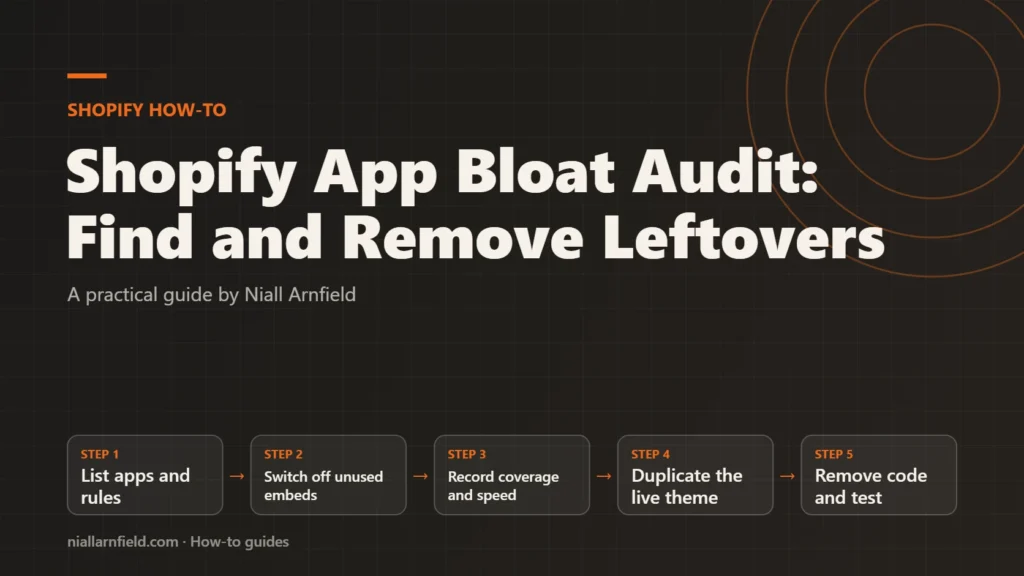
- List apps and rules
- Switch off unused embeds
- Record coverage and speed
- Duplicate the live theme
- Remove code and test
Set clear rules before you audit
An audit works best with clear rules. Decide what counts as needed before you open the theme code. For example, a review widget that shoppers use every day is needed. A tracker for a campaign that ended last year is not.
- Active: Installed, visible on pages, and used by the business.
- Installed but unused: The embed is still on, but no feature needs it.
- Uninstalled but present: The app is gone, but code or blocks remain.
Record each app against one of these labels. The list becomes the checklist for every step that follows. Start with the apps that sit on every page, such as chat widgets, review tools and tracking scripts. They add the most load time, so they deserve the first review.
Know where app code lives
Apps add code in three main places. App embeds float over the theme or add code without visible output. App blocks sit inside a section, and you can move them. Snippets and asset files hold the code that the theme or an app loads.
The theme editor shows embeds and blocks, but it does not show every file. Shopify’s help page on apps covers embeds and blocks. Do not assume an uninstall removes every theme file, and treat the theme files as the final check.
Step by step
-
List every installed app
In the Shopify admin, open Apps and list each app. Note what it does, who uses it and when someone last checked it. Add a column for whether it has an embed or block in the theme. Use the labels from the rules above.
-
Switch off unused app embeds
In the Shopify admin, go to Online Store and choose Edit theme. Open the App embeds panel in the sidebar. Turn off embeds for apps you do not need, then save. Turning off an embed hides its output, but its code can remain in the theme until you remove it.
-
Record coverage on a key page
Open your home page or a product page in Chrome, then open DevTools. Open the Coverage panel from the DevTools menu, then start a recording with reload. Click through the page during the recording, such as opening a menu, so features that load on interaction are counted.
-
Read unused code and the speed baseline
The panel lists each JavaScript and CSS file with its total and unused bytes. Click a file to see its unused lines marked in Sources. Then run the page through PageSpeed Insights. Field data shows real visitors, and lab data gives a repeatable test. Note both results before you change anything. Chrome’s PageSpeed Insights guide explains each one.
-
Duplicate the live theme
Before you touch any theme files, make a full copy of the live theme as a safety net. In Online Store, open the actions menu for the live theme, then select Duplicate. Check the copy, including its app embed settings, because they may not carry over.
-
Find leftover code on the copy
Get the copy’s code onto your computer with the Shopify CLI or a theme download. Search the sections, snippets, assets, layout and templates folders for the app’s name, its vendor name or a known snippet name. Replace app-name in this command with a string from that app’s code.
grep -ril "app-name" sections snippets assets layout templates -
Remove code on the copy, then test
Delete the unused block, snippet or asset on the copy. Preview the store, then test the home, product, collection, cart and checkout paths on desktop and mobile. When every check passes, apply the same changes to the live theme, one app at a time, and keep the copy for rollback.
How to check it worked
Compare the Coverage totals and PageSpeed Insights lab scores before and after your changes. Confirm each page still works, including add to cart, forms and any embedded widget. Check field data later, because it reflects weeks of real visits and lags behind your changes. Keep a written note of each change, so you can roll back the right item if a page breaks.
Common mistakes
- Editing the live theme first: One broken line can break a page for every shopper.
- Deleting a block still in use: Check the theme editor and each market before you delete anything.
- Testing one page only: Check the home, product, collection, cart and blog pages.
- Trusting coverage alone: It shows what ran during the recording, not what every visitor triggers.
If leftover code runs deep in custom sections, a Shopify developer can clean it up safely. A Shopify speed optimisation review looks at the wider picture.
Related how-to guides
- Canonical Tags on Shopify Collection Product URLs: Shopify products can be reached through a collection URL, which creates a second address for the same content.
- Faceted Navigation SEO on Shopify: A Practical Guide: Shopify filters can create many near-duplicate URLs, and search engines waste time crawling them.
- Shopify Image Optimisation with image_url and image_tag: Large product photos slow Shopify stores, especially on phones.
- Shopify Markets and Hreflang: A Practical Guide: Shopify Markets can give each country or language its own URL.
- Product Option Apps vs a Custom Build on Shopify: Shopify apps can add product options quickly, but a custom build gives you full control over data and cost.
- Shopify to WooCommerce Migration: Step-by-Step Guide: Moving from Shopify to WooCommerce means moving products, customers, orders and every old web address.
- WooCommerce Faceted Search: Speed and SEO Guide: Faceted search lets shoppers narrow products by size, colour, price and more.
See all the Shopify, WooCommerce and 3D how-to guides.
Common questions
Does uninstalling an app remove its code from my theme?
Not always, so do not assume it does. Apps can leave snippets, assets or blocks in the theme. After you remove an app, check the theme editor and your theme files, then delete anything left behind.
Is turning off an app embed enough?
Often, yes, since switching off an embed in the App embeds panel usually stops it loading. The code can stay in the theme, so removing it later keeps the theme tidy. Test the page after each change, because some apps load code in other ways.
Which numbers should I trust for speed?
Use both, because field data shows real visitors, while lab data is a controlled test that gives a repeatable baseline. Use Coverage to find unused code, then use field data to see whether real visitors notice the change.