Moving from Shopify to WooCommerce means moving products, customers, orders and every old web address. The fix is to export your data, map old URLs to new ones before launch, and replace the Shopify apps you relied on.
Plan your migrationSee selected work
Why the move is more than an import
Shopify and WooCommerce structure a store differently. Shopify product pages live under /products/, while WooCommerce product pages use /product/ by default. Customer passwords, app data and theme settings do not carry over in the same way. Each gap can cost search traffic or break a shopper’s journey if you do not plan for it.
When I plan a move, I start with the old URLs. Every page that already ranks needs a working address after launch. Otherwise it loses the links and rankings it has earned. My SEO migration service and migration checklist cover the full process.
The move also changes how customers log in and how stock syncs. Freeze product changes before the final export, so the data matches on launch day.
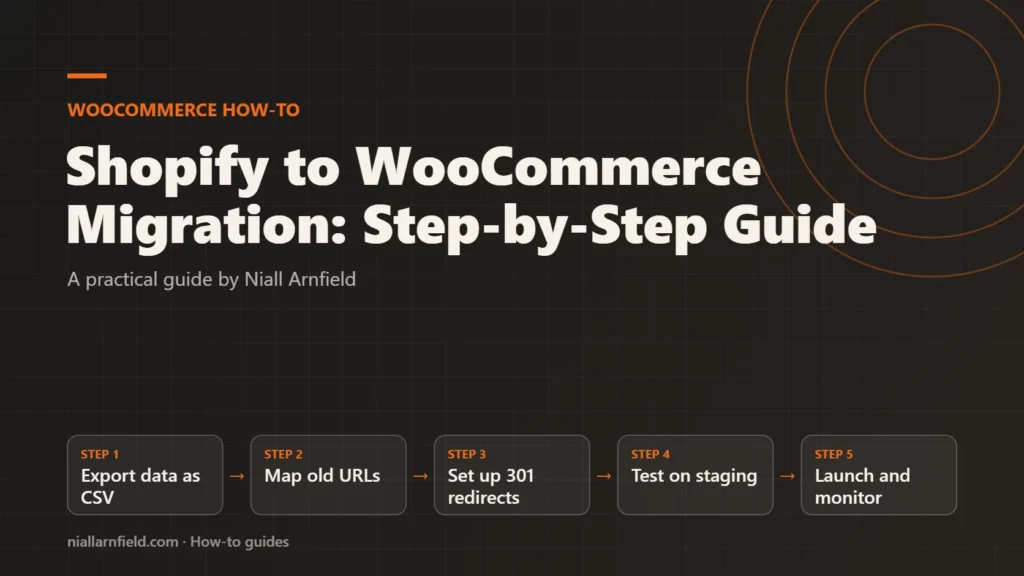
- Export data as CSV
- Map old URLs
- Set up 301 redirects
- Test on staging
- Launch and monitor
What to decide before you start
Make these decisions early, because each one shapes the work.
- Whether you import through the Shopify API or from CSV files, which needs a different tool.
- Which WordPress hosting and theme you will use.
- How you will replace each Shopify app, such as reviews, subscriptions or delivery rules.
- Whether you keep Shopify running until launch, so you can compare data. The Shopify vs WooCommerce comparison can help you weigh the trade-offs.
Write each answer down and share it with your developer and any app vendors early. Replacement tools often need setup time.
Step by step
-
Export products, customers and orders
Export each data type from the Shopify admin as a CSV file, and keep a copy of every file as a backup, even if you import through the API. Check that product handles, SKUs, variants and images appear in the product export. Export on the same day as your final content freeze, and name each file with its date, so versions stay clear.
-
Choose your import route
The Migrate and Import Shopify to WooCommerce extension, sold on the Woo Marketplace, connects to Shopify with a store URL, an API key and an API secret key from a custom app. Enter those under WooCommerce, then Settings, then Shopify to WooCommerce. Check the connection status before you run anything. The plugin can import products, customers, orders, pages, blogs and coupons, either together or one type at a time.
Test with a small batch first. The plugin can filter by title, vendor, ID or date, so start with a few products and check the results. Run one small import, then compare a product, a customer and an order with Shopify before importing everything. The plugin documentation covers each import option.
-
Map old URLs to new ones
Build a spreadsheet of every old Shopify address that gets traffic or links. Export the list from your analytics and Search Console. Pair each old address with its new WooCommerce address. For example:
- Product: /products/blue-lamp/ becomes /product/blue-lamp/
- Collection: /collections/lighting/ becomes a product category page
- Blog: /blogs/news/post-title/ becomes a WordPress post
You can change the WooCommerce product base in the WordPress Permalinks settings, if you want the new addresses to match the old structure more closely. Include image, category and blog addresses, not only product pages, because old content often carries links.
-
Set up 301 redirects
Add a permanent 301 redirect from each old address to its new one. Use a redirect plugin or your server configuration. Redirect each old address straight to its final page. Chains of redirects slow visitors and waste crawl effort. Then test a sample of old URLs covering products, categories, blog posts and pages. Check that each redirect returns a 301 status code, not a 302, using a header checker.
-
Replace Shopify apps and payments
List every Shopify app your store uses. For each one, choose a WooCommerce plugin, a service, or a custom build. Set up payment methods and tax in WooCommerce, then test each method with a test order. Note which app data you need to move, such as reviews or subscriber records, and export it before you cancel anything. Some apps have no direct equivalent. In those cases, a short list of must-have features guides the choice better than a long wish list.
-
Plan the customer password reset
Customer passwords cannot be moved. Shopify’s APIs do not provide password data, so the importer cannot copy them. Customers will need to set a new password on the new store. Send a clear email before launch with a link to the password reset page. Keep customer email addresses identical, so accounts and order history match.
-
Test the whole store on staging
Place a full test order, from product page to payment, email and order confirmation. Check search, filters, account login and password reset. Compare product counts, prices and stock with Shopify. Check the search engine visibility setting on the staging site. Staging sites often block search engines, and that block must be lifted before launch. Test on mobile as well as desktop, because many shoppers will check out on a phone.
-
Launch and monitor the first weeks
On launch day, point the domain at the new site and check that the redirects work. Submit the new sitemap in Search Console. Then watch crawl errors, 404 pages and indexing for several weeks. Keep the old store available for a short period so you can check data against it.
How to check it worked
Compare product, customer and order counts between Shopify and WooCommerce. Sample old URLs and confirm each one returns a single redirect to the right page. Review the 404 report every week for the first month. Check that the top pages from Search Console still earn impressions after the switch. Keep the export files until the new store has run through at least one full order cycle.
- Forgetting variants or SKUs, which breaks stock and checkout.
- Redirecting every old page to the homepage, which wastes the old rankings.
- Leaving the staging site open to search engines after launch.
When to get help
Get help if your store has many products, several markets or a custom Shopify theme. A developer can plan the URL map and run the import. My WooCommerce developer service covers the build side.
Related how-to guides
- WooCommerce Faceted Search: Speed and SEO Guide: Faceted search lets shoppers narrow products by size, colour, price and more.
- How to Migrate WooCommerce to HPOS Safely: Older WooCommerce stores save orders in the WordPress posts tables, and that slows down large stores.
- WooCommerce Speed: Caching and Scripts Guide: WooCommerce cart, checkout and account pages cannot be cached like a blog post.
- WooCommerce Structured Data: Product Markup Guide: WooCommerce adds basic Product data to product pages by default, but Google merchant listings need more.
- Variable Products at Scale in WooCommerce Stores: A variable product with hundreds of combinations can make product pages slow and hard to manage.
- Embed a 3D Viewer in WordPress: Step by Step: WordPress refuses GLB files by default, and a 3D script adds weight to every page.
- Optimise glTF for the Web: A Step-by-Step Guide: A heavy 3D model slows every product page it appears on.
See all the Shopify, WooCommerce and 3D how-to guides.
Common questions
Can I move Shopify customer passwords to WooCommerce?
No. Shopify’s APIs do not provide password data, so the importer cannot move passwords. Customers must set a new password on the new store. Send a clear email before launch with a link to the reset page, and explain why the reset is needed.
Will my rankings drop after the move?
They can, if old addresses do not redirect properly. Map every important old URL to its closest new page, use permanent 301 redirects, and check Search Console after launch. Some movement is normal for a few weeks, even with good redirects.
Do I need to keep Shopify running?
Not always, but it helps. Keeping the old store available for a short time lets you compare orders, product counts and customer records. Decide how long you need it before you cancel your plan.