Shopify products can be reached through a collection URL, which creates a second address for the same content. A canonical tag tells Google which address to index, and you can check it in a few minutes.
Discuss your Shopify SEOSee selected work
Why collection product URLs exist
A product can have two addresses on a Shopify store. The main one is /products/your-product. The second is /collections/your-collection/products/your-product. The second address appears when a theme links to a product from inside a collection. Both pages show the same content, which is the duplicate-content risk a canonical tag manages.
The problem grows with the catalogue. One product that appears in three collections can produce three collection addresses, all showing the same content. A small store may barely notice this, but a large one can see many near-identical pages in search.
Google does not merge these pages on its own. It groups duplicates and chooses one to index. You can guide that choice with a canonical tag, which names your preferred address. Google treats the tag as a strong signal rather than a command, so your internal links and sitemap matter too.
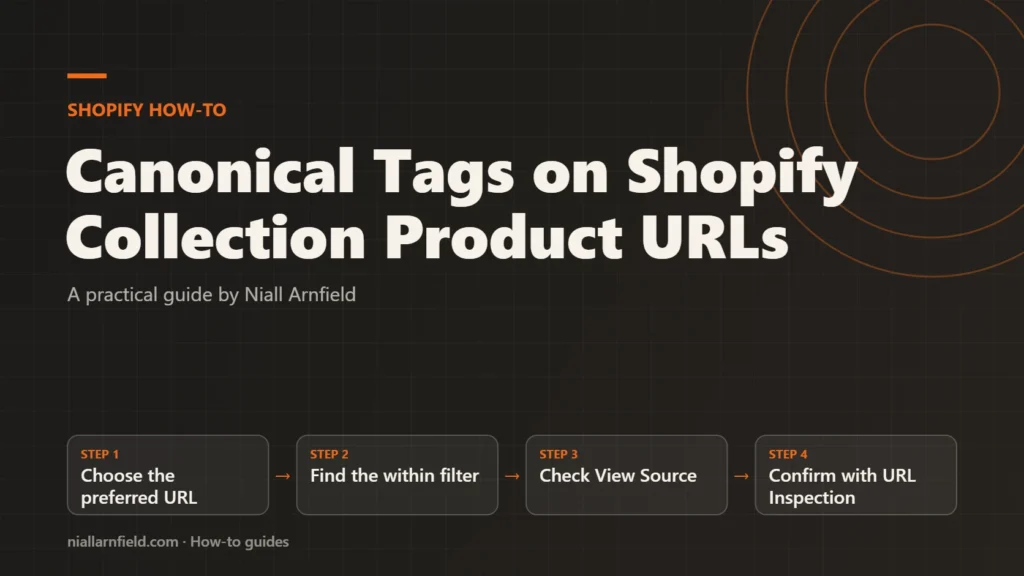
- Choose the preferred URL
- Find the within filter
- Check View Source
- Confirm with URL Inspection
What to decide before you start
Decide the preferred address first, then make sure every signal agrees with it. Start with your largest collections, because they hold the most duplicate addresses.
- Which address should be indexed for each product? For most stores, the /products/ address.
- Does your theme link products with the within filter, or with plain product URLs?
- Does your sitemap, which Shopify generates, list the same preferred address as your canonical tags?
Mixed signals weaken the canonical tag. A tag that says one thing, paired with links that say another, gives Google a reason to choose for itself. Write the decision down, so the theme developer and your SEO work follow the same rule.
How themes link products in collections
Many Shopify themes build collection grids with a Liquid filter called within. The filter adds the collection to the product path, so the link becomes a collection-scoped address. This helps shoppers stay in the collection, but it also creates the duplicate.
Shopify’s within filter reference shows the pattern. It also warns that a standard product page and a collection-context page can have the same content on separate URLs, so you should consider the search impact.
Search engines read the links in the HTML, not your intentions. A within link is still a plain link, so Google may follow it and record that address. The canonical tag helps Google choose the preferred address, but only when the rest of the site agrees with it.
Step by step
-
Choose the preferred address
For most stores, the /products/ address is the right preferred URL. It is the simplest address and the one a sitemap should list. Keep it consistent across the site, so every signal points to the same place.
-
Find where the theme builds links
Open your theme code and search the product card and collection snippets for within. Some themes build links in several files, so search the whole theme. Shopify’s own example shows the pattern. The output looks like /collections/your-collection/products/your-product.
{%- assign collection_product = collection.products.first -%} {{ collection_product.url | within: collection }} -
Check the canonical in View Source
Open a collection-scoped product URL in your browser. Choose View Source, then search for rel=”canonical”. The href should point to the /products/ address, with the full domain. Themes differ, so check your own store rather than assuming.
-
Review canonical_url in the theme
Most Shopify themes build the canonical tag from the Liquid object
canonical_url, in the layout file’s head section. Find that line and compare it with your View Source check. On a collection-scoped product page, the output should still be the /products/ address. Avoid adding a second canonical tag in a snippet or app, because conflicting tags weaken the result. -
Confirm with URL Inspection
In Google Search Console, open the URL Inspection tool and enter a collection-scoped product URL. Compare the user-declared canonical, which comes from your tag, with the Google-selected canonical. If they differ, look for conflicting internal links or sitemap entries. The report shows what Google chose, not what you want, so treat a mismatch as a diagnosis and fix its cause first.
-
Align internal links and sitemap
Review navigation, featured-product blocks and other links that point to collection-scoped addresses. Start with the links that shoppers click most. Where you control the link, point it to the preferred address. Changing one link is quick, but a template change can alter thousands of pages, so test it first. Mixed internal links often undermine a correct canonical tag, so fix them as well.
-
Recheck after theme changes
Theme updates can change product links and canonical output. Repeat the View Source and URL Inspection checks after any theme change, and after you restructure collections or product URLs.
How to check it worked
Pick three products, one from each main collection, and include one from an automated collection if you use them. For each one, open the collection address, view the source and confirm that the canonical points to the /products/ address. Then run URL Inspection on the same address. Over the following weeks, watch the Pages report in Search Console to see whether the duplicates drop out of the index. Keep a short log of the URLs you checked and the results, because it helps you spot a regression after the next theme update.
Common mistakes and when to get help
- Adding a canonical tag but linking to the collection address everywhere else.
- Using a relative path for the canonical. Google recommends absolute URLs.
- Changing collections or URLs without checking the canonical output afterwards.
Get help when your theme is heavily customised, or when duplicates affect a large catalogue. A developer can change product card links without breaking filters or navigation. For a wider review, see my Shopify SEO audit or the Shopify SEO service.
Related how-to guides
- Shopify App Bloat Audit: Find and Remove Leftovers: Uninstalled apps can leave scripts, snippets and embeds behind, and these slow your store.
- Shopify Redirects at Scale for Bulk Migrations: Shopify lets you redirect old URLs to new ones, one at a time or by CSV import.
- Add a 3D Viewer with a Shopify Theme App Extension: A 3D viewer should load on product pages only, and only where the merchant places it.
- How to Get Past Shopify's Product Variant Limit: Shopify caps how many variants and options one product can have, so a highly configurable item can run out of room.
- Faceted Navigation SEO on Shopify: A Practical Guide: Shopify filters can create many near-duplicate URLs, and search engines waste time crawling them.
- How to Migrate WooCommerce to HPOS Safely: Older WooCommerce stores save orders in the WordPress posts tables, and that slows down large stores.
- WooCommerce Speed: Caching and Scripts Guide: WooCommerce cart, checkout and account pages cannot be cached like a blog post.
See all the Shopify, WooCommerce and 3D how-to guides.
Common questions
Is a collection product URL bad for SEO?
Not always, but it creates a second address for the same content, and Google may index either one. A correct canonical tag tells Google which address to prefer. Consistent internal links support that choice. The goal is one preferred address for each product. Your theme decides the final output, so check it rather than assume it.
Does a canonical tag stop Google indexing the other URL?
Not directly. Google describes a canonical as a strong signal, not a directive. Google usually keeps the preferred address in results, but it can still crawl the duplicate. Use the URL Inspection tool to see which canonical Google has chosen.
Should I noindex the collection product URLs instead?
Usually not. Noindex removes a page from search, which can be the wrong fix for a product address. Start with the canonical approach. Use noindex only for pages that should not appear in search at all.