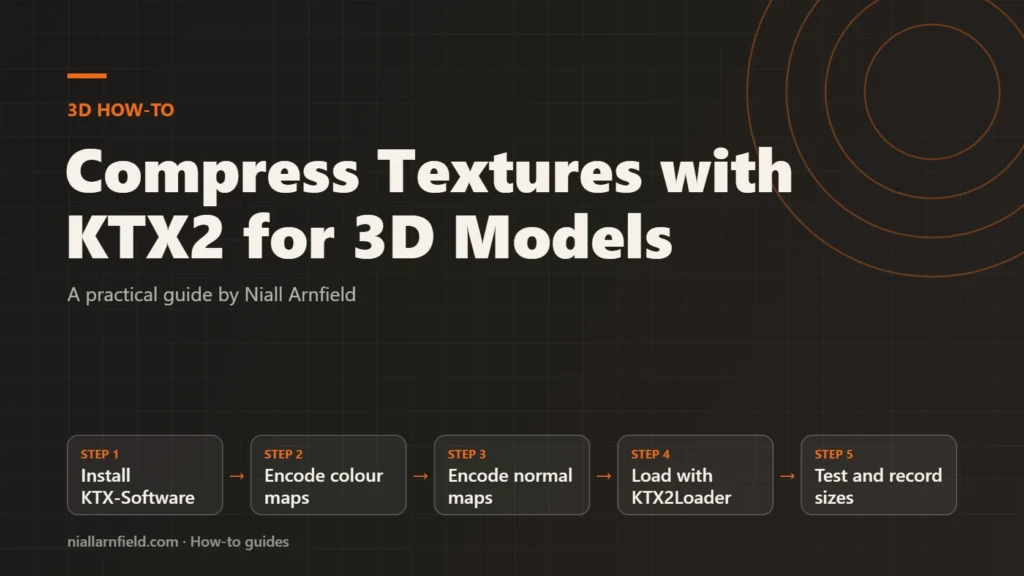
Large texture images make 3D models slow and heavy in graphics memory. KTX2 stores textures in a format the graphics card reads directly. This guide shows how to convert them, choose ETC1S or UASTC and load them in three.js.
Discuss your product rangeSee selected work
Why KTX2 differs from PNG and JPEG
A PNG or JPEG file must be decoded into raw pixels before the graphics card can use it. That decoding takes time, and the full pixel data then sits in graphics memory. KTX2 is a container for GPU texture formats. Basis Universal data is transcoded in the browser to a compressed format the graphics card can read directly, so memory use often drops and the browser has less work to do. The speed gain tends to show most on phones and older laptops, where memory is tight. This is why KTX2 is often the next step after you have cleaned up the model itself.
The gain grows in a configurator. Each colour, fabric or finish may need its own texture set. Small savings per texture add up quickly across every option the shopper can choose. For the wider context of 3D file types, see the KTX2 textures guide.
- Install KTX-Software
- Encode colour maps
- Encode normal maps
- Load with KTX2Loader
- Test and record sizes
Choose ETC1S or UASTC before you convert
KTX2 can hold two Basis Universal formats. The choice decides the file size and how much detail you keep, so decide per texture type rather than for the whole project.
- ETC1S gives the smallest files. It suits flat colours and mostly monochrome textures, such as a painted base colour or a simple label.
- UASTC keeps more detail and handles varied channel values better. It suits detailed colour maps, packed textures and most normal maps.
The Khronos KTX artist guide recommends UASTC for normal maps. It presents this as a suggestion, not a strict rule. Test both formats on your own model, then compare the file size and the look under real lighting before you settle on one.
As a rule of thumb, use ETC1S for the bulk of simple colour maps and reserve UASTC for anything detailed. Mixed projects often use both formats. A texture that looks fine in ETC1S at one size may show blocks at another, so test at the sizes your viewer uses.
Step by step
-
Install the KTX-Software tools
KTX-Software is the Khronos toolset for KTX files. Its toktx tool converts ordinary images into KTX2 files. Install a release from the KTX-Software GitHub releases page, then make sure the toktx program is on your PATH so you can run it from any folder. Keep the release folder with your build tools, so every team member uses the same version.
-
Convert a colour map to ETC1S
The
--t2flag writes KTX2 rather than the older KTX format. The--encode etc1sflag selects ETC1S compression. The--genmipmapflag builds smaller copies of the texture for use at a distance. The--assign_oetf srgbflag tells the tool that the image is sRGB colour data. Keep the source PNG as the master, so you can re-encode if the settings change.toktx --t2 --encode etc1s --genmipmap --assign_oetf srgb diffuse.ktx2 diffuse.png -
Convert a normal map to UASTC
Normal maps store direction, not colour, so they must use linear values. This command encodes one with UASTC at quality level 2, which is the default. Add
--normal_modeonly if your shader rebuilds the blue channel, because it changes what the file stores. Check the normal map’s direction after conversion, because flipped green channels are a common cause of odd lighting.toktx --t2 --encode uastc --uastc_quality 2 --genmipmap --assign_oetf linear normal.ktx2 normal.png -
Convert textures inside a GLB
If the textures already sit inside a GLB, gltf-transform can convert them in one pass. It calls the KTX-Software command-line tools, so install those first. Use
etc1sfor colour-heavy models anduastcwhen detail or normals matter most. The command converts every texture in the file unless you limit it, so rungltf-transform help uastcto see the option for choosing texture slots. Check the result carefully, and work on a copy.gltf-transform uastc product-textured.glb product-ktx2.glb -
Load KTX2 in three.js
three.js needs a KTX2Loader to read these textures. Set the transcoder path, call detectSupport with your renderer, then pass the loader to GLTFLoader. The KTX2Loader reference lists the full API if you need more options.
import { GLTFLoader } from 'three/addons/loaders/GLTFLoader.js';
import { KTX2Loader } from 'three/addons/loaders/KTX2Loader.js';

const ktx2Loader = new KTX2Loader()
  .setTranscoderPath('/libs/basis/')
  .detectSupport(renderer);

const gltfLoader = new GLTFLoader().setKTX2Loader(ktx2Loader);
const gltf = await gltfLoader.loadAsync('/models/product-ktx2.glb');
Copy the transcoder files from the three.js examples folder, at
examples/jsm/libs/basis, into your own site. Then point the path at that copy with a trailing slash. The renderer is your existing WebGL or WebGPU renderer, because detectSupport accepts either. It must run before any texture loads. -
Test the textures in the browser
Open the model in the free GLB viewer first. If the viewer cannot load the file, test on your own page before you judge the output. Compare the converted and original textures side by side, at the same zoom level. Look for blur, banding and colour shifts. Check normal maps under a moving light, because bumps that look flat or inverted point to a channel problem.
-
Record sizes and set a target
Note the file size of each texture before and after conversion, and keep the figures in a simple table. For example, you might aim for a fifth of the original size, then accept the smallest file that still looks right. Repeat the process for each texture set in the model, so the targets stay consistent. Keep the figures with the file names, so the next project starts from real numbers.
How to check it worked
Good KTX2 output looks the same at normal viewing distance and loads faster. Check three things. The files are smaller than the originals. Colours match the source image under the same lighting. Normal maps catch light the way the original did. In the browser’s network panel, the texture files should show their new, smaller sizes.
Common mistakes
- Encoding normal maps as sRGB, which shifts their values and makes lighting look wrong.
- Using ETC1S on detailed normal maps, which tends to show block artefacts under light.
- Forgetting to copy the transcoder files, so the loader fails on the first KTX2 texture.
- Skipping mipmaps, which can make distant surfaces shimmer as the camera moves.
- Choosing one format for every texture without comparing results, which wastes quality or size.
If the textures still look wrong after testing, the source images may be the cause. Compression cannot repair noise or artefacts already baked into a JPEG. Start from a clean master file. For a full configurator build, see my product configurator service.
Related how-to guides
- Embed a 3D Viewer in WordPress: Step by Step: WordPress refuses GLB files by default, and a 3D script adds weight to every page.
- Optimise glTF for the Web: A Step-by-Step Guide: A heavy 3D model slows every product page it appears on.
- Shopify App Bloat Audit: Find and Remove Leftovers: Uninstalled apps can leave scripts, snippets and embeds behind, and these slow your store.
- Canonical Tags on Shopify Collection Product URLs: Shopify products can be reached through a collection URL, which creates a second address for the same content.
- Faceted Navigation SEO on Shopify: A Practical Guide: Shopify filters can create many near-duplicate URLs, and search engines waste time crawling them.
- Shopify Image Optimisation with image_url and image_tag: Large product photos slow Shopify stores, especially on phones.
- Shopify Markets and Hreflang: A Practical Guide: Shopify Markets can give each country or language its own URL.
See all the Shopify, WooCommerce and 3D how-to guides.
Related reading: Three.js ecommerce examples.
Common questions
Is KTX2 supported in all browsers?
Support depends on the device and its graphics stack. The three.js loader detects what the device supports and transcodes the texture to a format it can use. Test on a range of phones and laptops before you rely on it. Check the transcoder path on the live site, since a missing file is a common cause of failure.
Should I use ETC1S or UASTC by default?
Start with ETC1S for simple colour maps, because it gives the smallest files. Use UASTC for normal maps and detailed textures. Then compare file sizes and visual results on the same model before you decide on a standard for the project.
Can WebP do the same job?
WebP is a smaller alternative to PNG and JPEG, and it is simpler to set up. KTX2 keeps textures compressed on the graphics card, so it can save more memory at runtime. Use WebP when your viewer or platform does not support KTX2.