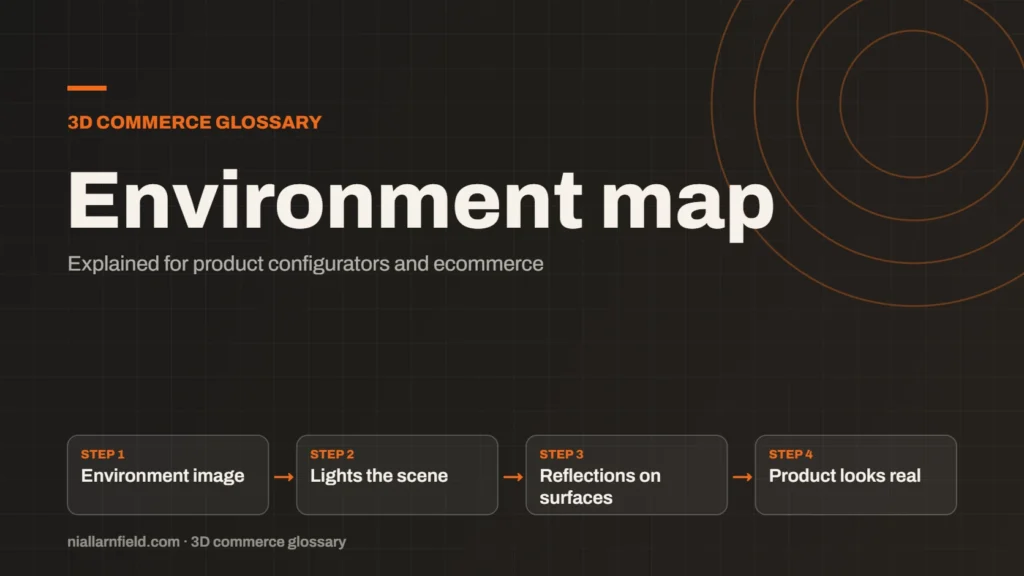
An environment map is an image of the surroundings that a 3D scene uses for lighting and reflections. Shiny surfaces reflect it, and rough surfaces pick up its soft light. It is a major reason a product can look real in a configurator.
Discuss your product rangeTry the demos
How an environment map lights a scene
A 3D scene often has no real light sources that match a photograph. An environment map fills that gap. It is an image that wraps around the model, usually stored in high dynamic range so that bright and dark values are both kept. Each surface looks at the image and takes light from the direction it faces.
Three.js calls this property scene.environment. Its documentation says it “Sets the environment map for all physical materials in the scene”. The Scene documentation confirms that the default is null, so you must set the map on purpose.
The map is therefore a lighting input, not a picture on the wall. The surface shows what the map contains from its own viewpoint, and the effect is strongest where the material is shiny. Environment maps are often captured from real studios, or generated from a simple gradient. Either way, the source image should describe a believable space. A map that looks unnatural will light a product unnaturally, even when the material settings are correct. For a wider view of lighting in a product configurator, the service page is a good starting point.
- Environment image
- Lights the scene
- Reflections on surfaces
- Product looks real
Why reflections make products look real
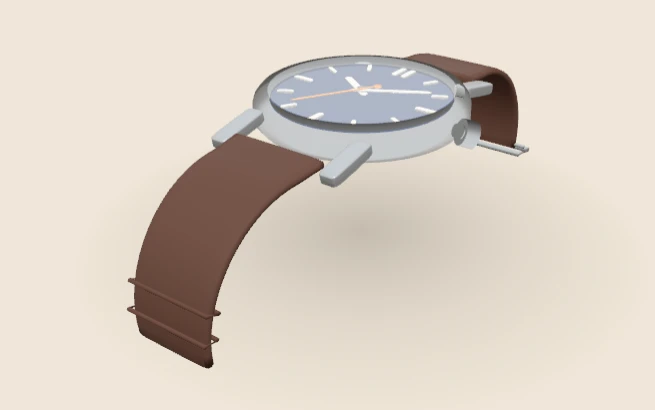
Metal and glossy finishes depend heavily on reflections. A chrome watch case with no environment map looks dark and flat, because it has nothing to reflect. With a studio-style map in place, the same case picks up soft highlights and a clear sense of material.
Rough finishes also need the map. Fabric and matt plastic pick up gentle, diffuse light from it, which keeps them from looking like plain colour. The Khronos PBR guide explains that roughness controls how sharp or blurred reflections look. The environment map supplies the content that those reflections show.
This is why the PBR material values and the environment work as a pair. Good material values with no environment map can look wrong, and a good map cannot fix a poor material. I often test a product with two maps, one bright and one soft, and compare the results side by side. The difference shows quickly which map keeps the finish honest. That quick test saves arguments about taste later, because the evidence is on screen. The results are also easy to explain to a client, which helps when someone asks why the chrome looks different.
What I do when I set up an environment
When I build a configurator, I treat the environment as part of the product’s look. I make the same choices each time, so that options stay comparable to one another. Changing the map between options makes colours hard to judge and harder to trust.
- Use one neutral studio map for the whole configurator, so colours match across options.
- Match the map resolution to the viewer size, because oversized maps slow the first load.
- Set intensity separately with scene.environmentIntensity, so you can tune brightness without re-exporting the model.
- Rotate the map only when a product needs a fixed highlight position, using scene.environmentRotation.
Keeping these settings in code means you can change the look without touching the 3D files. That saves time when a client asks for a different mood.
If a configurator offers several finishes, the map should not change between them. A brushed steel option and a gloss black option should respond to the same light. This keeps comparisons fair and lets the shopper judge the finish on its material alone, not on the lighting.
Common mistakes and limits
A map that is too bright washes out colours. A map with strong sun spots can put hard highlights on a product that should look soft. Both problems show up most clearly on glossy finishes, where the highlight is easiest to see.
- Using a bright outdoor photo for an indoor product.
- Forgetting that scene.background is separate, so setting the environment does not draw a backdrop.
- Expecting the map to add shadows on its own.
For contact shadows, you still need a separate method, such as a baked or screen-space shadow. The map supplies light and reflection, but it does not ground an object on a surface.
Finally, remember that a map lights every physical material in the scene, including parts you did not expect. Use the GLB viewer to check the model on a plain setup first, then check each option in the full page layout before release.
Related terms
- HDRI lighting: HDRI lighting uses a high dynamic range image of an environment to light a 3D scene.
- Baked lighting: Baked lighting calculates light ahead of time and stores the result in a texture, called a lightmap.
- Tone mapping: Tone mapping converts the wide range of light values in a 3D scene into the narrower range a screen can show.
- PlayCanvas: PlayCanvas is an open-source 3D engine written in JavaScript, with its own visual editor.
- React Three Fiber: React Three Fiber is a React renderer for Three.js.
- model-viewer: model-viewer is Google's open-source web component for showing 3D models on a web page.
- Rules engine: A rules engine is the logic inside a product configurator that decides which option combinations are allowed.
- CPQ: CPQ stands for configure, price and quote.
- SKU explosion: SKU explosion happens when every combination of options becomes its own stock item.
- Line-item properties: Line-item properties are custom key and value pairs attached to one item in a Shopify cart or order.
Browse all the definitions in the 3D commerce glossary.
Common questions
What is an environment map in simple terms?
It is a panoramic image that tells a 3D scene what surrounds the object. Surfaces use it to work out light and reflections. It makes shiny materials look as though they sit in a real space.
Does an environment map show up as the background?
Not by default. In Three.js, scene.environment lights the scene, while scene.background controls what is drawn behind it. You set each one separately, and you can use the same image for both.
Do environment maps increase file size?
Usually not in the model itself. The map is normally a separate image that the viewer loads. Large maps still slow the first load, so keep them at a sensible resolution for the viewer size.