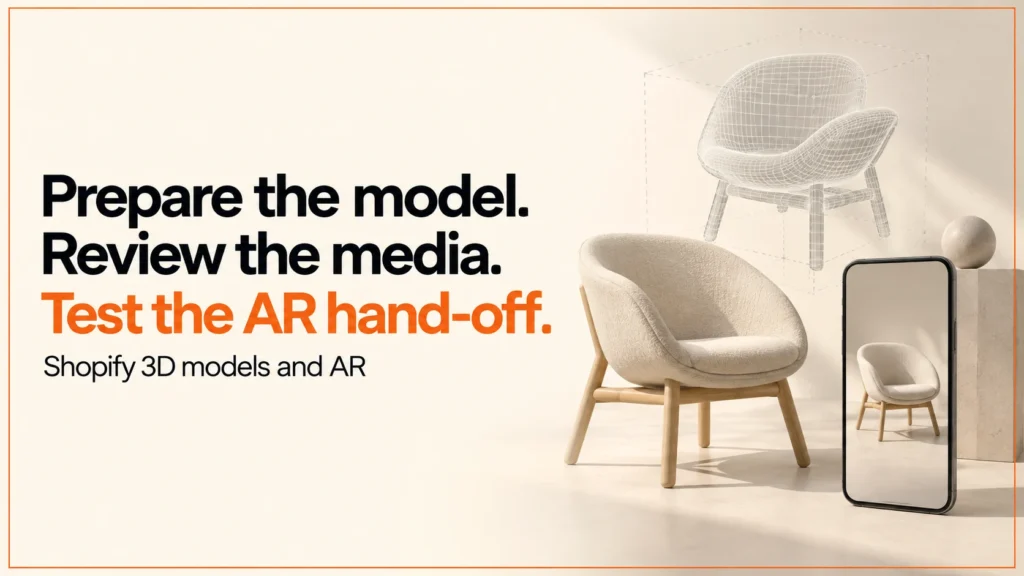
Shopify 3D models let customers turn a product around on the page, and on supported devices view it in their own space with AR. This guide covers who it suits, how to add a 3D model to a Shopify product, and the checks that stop it going wrong.
Discuss your product rangeTry the demos
I am an independent designer-developer based in Manchester, working across the UK. I led development of the Praxis Digital 3D configurator platform, used by 20+ UK businesses from 2021 to 2025. This page describes a review method. It is not a report on a named merchant’s store.
Who Shopify 3D models suit
A 3D model earns its place when a photo cannot answer the buyer’s question. Think of furniture, lighting, bags, appliances, trade equipment and anything where shape, scale or finish drives the decision.
It suits you if you already own a good model, or can commission one. It suits you if returns or pre-sale questions come from “what will it look like in my room?”. It is less useful for flat, simple or very low-cost items, where a clear photo does the job.
Check the upload and theme requirements
Shopify’s product media documentation lists GLB and USDZ as accepted 3D model file types, with files up to 500 MB. Files over 15 MB are automatically optimised, which covers geometry and textures. Files under 15 MB are not changed. Shopify also converts files so both a USDZ and a GLB version are available.
These are platform limits and processing rules. They are not performance targets. A file can be accepted and still be too heavy for a phone on a weak connection.
Your theme must support 3D models too. Shopify says all Online Store 2.0 themes built by Shopify, the Horizon family of themes, and most third-party themes have recent versions that include 3D models. Check your actual theme and its version. Do not assume. Re-read the official pages when you start work, because platform behaviour can change.
How to add a 3D model to a Shopify product
The route from file to live page is short. Most problems come from skipping the first two steps.
- Prepare the source. Keep the editable files, texture permissions, real product dimensions and export settings. Check the model’s orientation and scale before it leaves your hands.
- Inspect the export. Open the file and look at the silhouette, surfaces and seams. Fix issues at source, not after upload.
- Upload it in the product’s media. Add the GLB (or USDZ) alongside the product images, the same way you add any other media.
- Check the theme. View the live product page and confirm the model appears in the gallery, loads, rotates and sits in a sensible place in the media order.
- Test on real devices. Try a recent iPhone, an Android phone and a desktop browser. Test the AR launch and the return to the product page.
Prepare the source and inspect the export
I use the local GLB viewer to inspect a self-contained web export. Its geometry counts and wireframe are diagnostic tools. They do not certify an asset. The GLB guide and header inspector explain how the container is built. The material lab explains why a metal, fabric or gloss finish looks the way it does.
If the product has options, keep part and finish names stable from the start. It saves rework later.
AR on iPhone and Android
AR lets a shopper place the product in their room through their phone camera. On iPhone this relies on a USDZ file and Apple’s Quick Look viewer. Shopify converts files so both versions are available, as noted above. Android phones use a different viewer, so test them separately. I explain how the iPhone route behaves in my guide to USDZ and AR Quick Look.
What matters for the buyer is simple. The product should appear at true size, with the right finish, and they should be able to get back to the buying journey afterwards. Test all three. Check scale against a known dimension, because a product shown at the wrong size in a room gives the buyer the wrong answer to the very question AR is meant to settle.
An original media acceptance worksheet
| Test ID | What to compare | Evidence to retain |
|---|---|---|
| MEDIA-01 | Editable source against the delivered GLB | Source version, export settings and dated visual review |
| MEDIA-02 | Uploaded media against any processed output | Delivered sizes, important surfaces and accepted changes |
| MEDIA-03 | Product gallery on target screen sizes | Theme version, controls, framing and fallback |
| MEDIA-04 | Selected product and finish against the AR preview | Product identity, finish identity and asset version |
| MEDIA-05 | Known dimensions against the device preview | Units, width/height/depth and actual device observation |
| MEDIA-06 | Return from AR to the buying journey | Preserved choice, price status and next action |
The worksheet separates things that are often lumped together as “the model works”. Passing an upload does not prove a finish is accurate. It does not prove a phone shows the right scale, or that the product form keeps the selected variant.
Static 3D model or configurator
A static model gives inspection. A configurator adds rules and state changes, such as materials, parts or dimensions. Decide which one the range needs before you estimate asset counts or integration work. For a custom viewer inside a theme, see adding a 3D viewer with a theme app extension.
For a configurable range, write a mapping from the selected commercial state to the model shown in AR. If only some states have an approved asset, say so and offer a useful alternative. Never open a default model after a visitor chose a different finish.
If you need the second kind, my configurator development page covers the build. I have also written up a Shopify configurator integration example with 33 offline checks, in my Shopify configurator integration guide. For passing options through the product, see Shopify metafields for configurable products. These are examples of method, not claims about any merchant’s store.
Page speed and loading budget
3D media is heavy compared with a photo. Pick a representative target phone and connection. Record how the gallery behaves now. Then add the model and measure the real journey again. Textures are often the largest part of a model; the KTX2 texture guide explains how to compress them step by step.
Include the time until the model is usable, the rest of the product page, and any error path. Keep an image route working in case the interactive view cannot start. For wider tuning, see my notes on Shopify speed optimisation.
Review what automatic optimisation did to your file. If a logo, seam or pattern identifies the product, compare it against the source.
Common mistakes
- Treating the 500 MB limit as a target. It is a ceiling, not advice.
- Skipping scale checks. The model looks fine on screen and wrong in a room.
- Assuming every theme works. Confirm your theme and version.
- Testing on one device. Desktop success says little about a phone.
- Ignoring variants. Showing the wrong finish in AR misleads the buyer.
- No fallback. Keep good photos in the gallery.
Next step
Try the configurator demonstrations to see what is possible, and use the project brief to write down your requirements. If you want hands-on help, see my Shopify developer page or get in touch.
Related reading: 3D product visualisation.
FAQ
Which file types can I use for Shopify 3D models?
Shopify’s documentation lists GLB and USDZ, up to 500 MB. Shopify converts files so both versions are available. GLB is the usual one to prepare.
Does Shopify optimise my 3D file?
Files over 15 MB are automatically optimised, covering geometry and textures. Files under 15 MB are not changed. Always compare the result with your source.
Will my theme show 3D models?
Probably, if it is current. All Online Store 2.0 themes built by Shopify, the Horizon family and most third-party themes have recent versions with 3D model support. Check your own theme and version.
Do I need a configurator for Shopify augmented reality?
No. A static model is enough for inspection and AR placement. A configurator is for products with options that change the model.
References: Shopify’s product media requirements and theme media documentation. The acceptance worksheet and review method are original examples. Reviewed 14 October 2026.