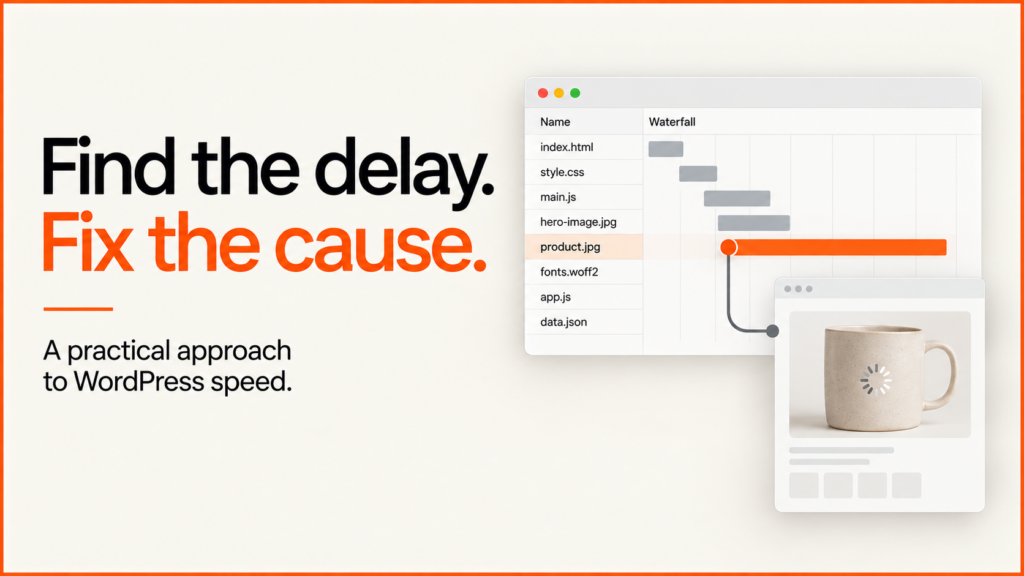
WordPress speed optimisation should start with one slow thing and a test you can repeat. A slow product image, a menu that lags and a slow server are different problems. Installing a cache plugin and changing every setting makes it hard to know what helped.
Discuss your projectSee selected work
I find and fix speed problems as part of my WordPress development work. The aim is a faster, reliable site, with clear proof of what changed.
Record a baseline you can reproduce
Test important public page types while logged out. Record the URL, device or emulation, network conditions, browser, cache state and date. An administrator’s toolbar, browser extensions or a warm cache can change the result.
Use several comparable runs when timing varies. Keep the underlying metrics and trace, not only the headline score. Where real-user data is available, record its source and reporting window separately from the lab test. The Core Web Vitals guide explains that distinction.
If the reports appear to disagree, use the lab-versus-field comparison to check which URL, visitors and dates each result covers.
Match the symptom to the investigation
| Symptom | Investigate | Avoid assuming |
|---|---|---|
| Page starts rendering late | Server response, caching, redirects and blocking resources | Every delay is an image problem |
| Main image appears late | Image discovery, dimensions, format, priority and transfer | Lazy-loading every image is helpful |
| Controls respond slowly | JavaScript work and the interaction’s update path | A small page download guarantees responsive controls |
| Content moves after loading | Reserved media space, fonts and inserted components | A fast server prevents layout shifts |
A finding should identify a likely cause and a way to test it. “Too many plugins” is not specific enough: one plugin may add costly public scripts while several others only support administration. Inspect what actually runs on the affected page.
Make image delivery proportional
Serve images at the right size, with a few sizes for different screens and space saved for them in the layout. Make sure the browser can find the main image early. Images lower down can load later, but don’t delay the first big image without good reason.
Inspect the result visually after compression. Text embedded in a screenshot, subtle material differences and product details can be damaged by an aggressive setting. The smallest file is not automatically the best commercial asset.
For a 3D page, separate the initial article or product preview from the interactive viewer. A visitor who has not opened the viewer may not need its engine, model and textures immediately. Still test the activation path; deferred work must remain usable when it is requested.
The ecommerce image-delivery comparison shows which file Chrome selected at two mobile pixel densities and on desktop, with all 18 measured loads available to inspect.
Reduce unnecessary work deliberately
Identify scripts and styles by responsibility. Determine whether they are needed on every template, whether the page depends on their execution order and whether removing them affects an app or form. Optimisation should not silently remove a validation step or break consent behaviour.
Test minification, deferral and bundling changes one at a time where the interactions are uncertain. A working homepage does not prove a checkout, search or account page still works. Preserve the previous configuration so a regression can be reversed quickly.
Treat caching as part of the application
Agree which pages can be cached and which depend on the visitor, their account or their basket. Check the cache clears when content or products change. A fast page with an old price, or someone else’s details, is not a win.
Hosting changes may help when the bottleneck is server-side, but they should follow evidence. Record response behaviour before and after under comparable conditions, and account for cache warmth. Do not attribute a better result to a new host when the test changed several other variables.
Verify speed and function together
The release notes should list the files or settings changed, the before and after numbers, the visual checks and the customer tasks tested. If you have no real-visitor data, say so. A Lighthouse score is a useful lab test, not a promise about every visit.
Keep a quick speed check for the key templates. Sites slow down over time as staff add images, apps or tracking, so ongoing website maintenance should watch the changes most likely to slow it.
Request a WordPress performance review with the slow URLs, the task that feels slow and any existing reports. I can then define an investigation and the smallest useful set of fixes.
Related guides
- Speed work sits alongside the rest of a technical SEO audit, so faster templates are matched by clean indexing, canonicals and internal links.
- Speed is one part of search. The WordPress SEO checklist covers the rest, from indexing settings to titles and structured data.
- Sometimes a slow theme is cheaper to replace than to tune. See website redesign.